
You already have useful material in PDFs. Turning it into a video people will watch is the harder part.
PodcastorAI turns a PDF into a video podcast in four stages: import the source, shape a script, choose voices and a video format, then review the result. This guide explains the workflow, the setup choices, and the checks that keep an AI-generated episode useful.
Quick answer: from PDF to video podcast
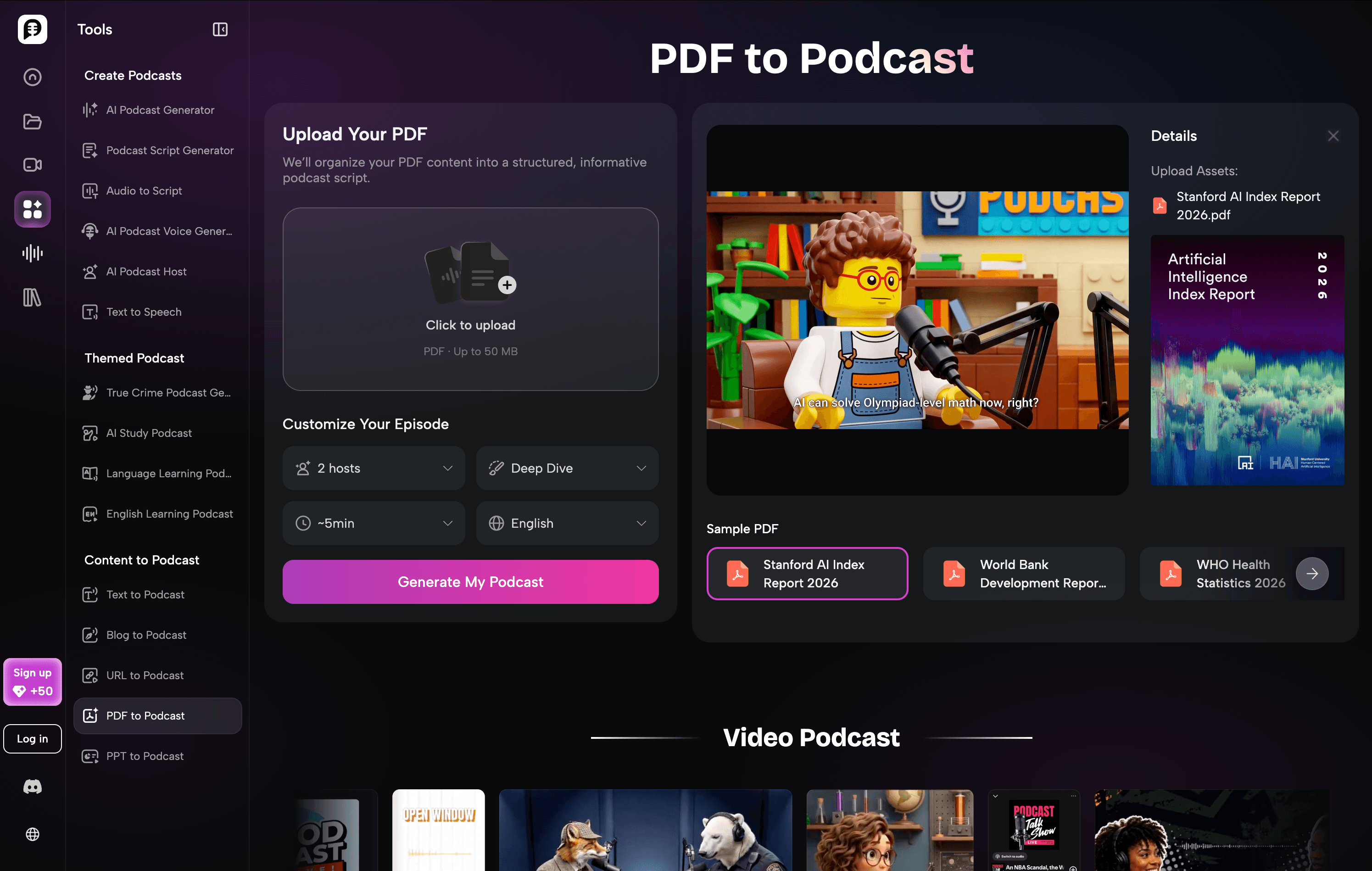
To turn a PDF into a video podcast, upload the source document, generate a reviewable script, choose the voice and video format, then preview the finished episode before export. The document supplies the ideas; the review step makes those ideas clear enough to hear and watch.
-
Upload PDF
-
Check the generated script for accuracy and flow.
-
Build the approved script into a host-led or visual video podcast.
-
Preview captions, pronunciation, and the final export format.
What is a PDF to video podcast?
A PDF to video podcast is a video episode built from an existing document. Instead of reading every paragraph or slide aloud, it turns the central ideas into a solo explanation, a two-host conversation, or an audio-first episode with visual support.
That distinction matters. A document is written to be scanned. A podcast is made to be heard. The strongest results use the PDFvas source material, then reorganize it around a clear listener question.
For example, a 20-slide PDF can become:
-
A short two-host discussion of the three takeaways.
-
A customer education episode that explains one process step by step.
-
A camera-free video episode for YouTube, LinkedIn, or an internal learning hub.
How to turn a PDF into a video podcast with PodcastorAI
1. Upload your PDF or document
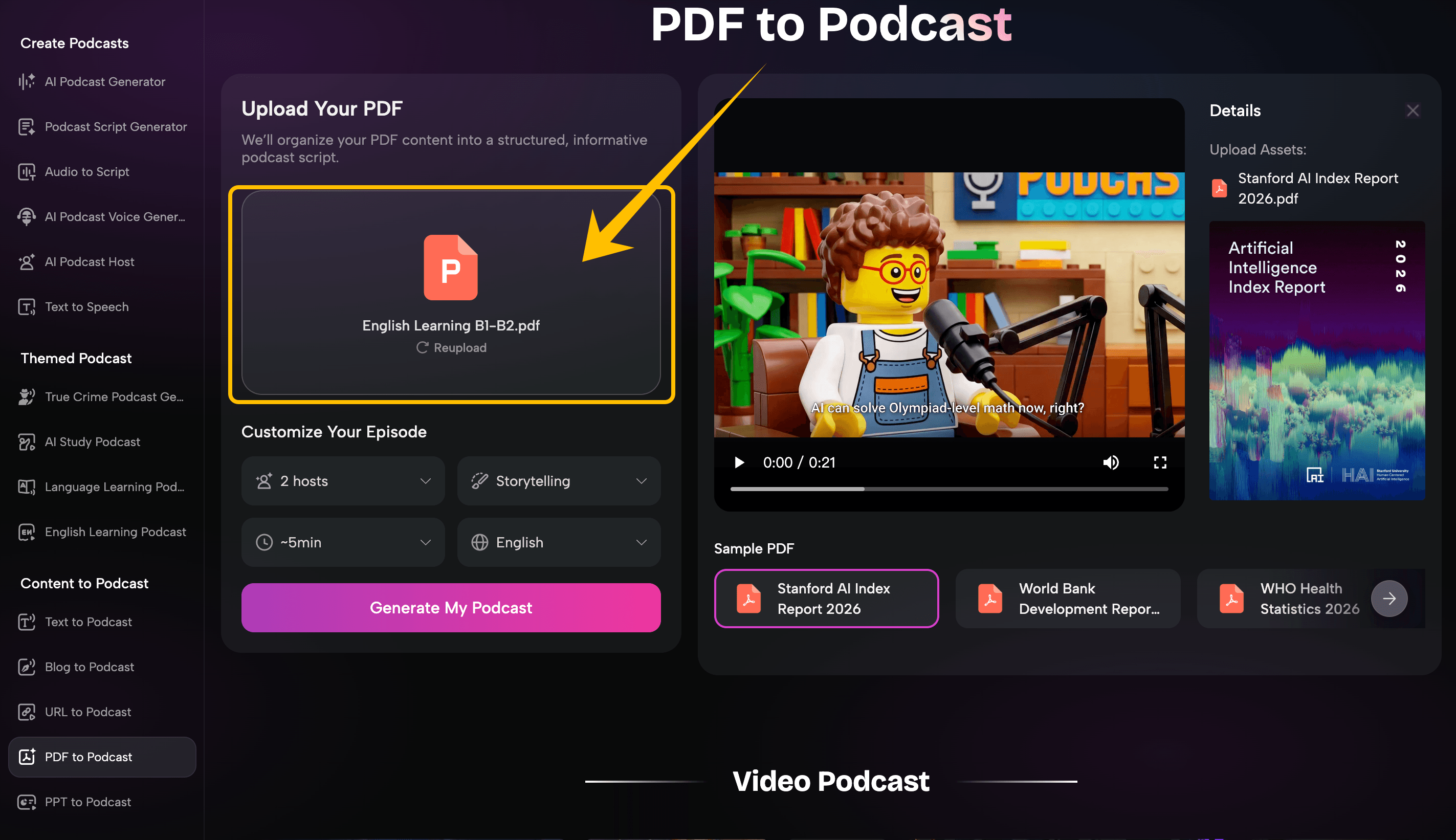
Open PDF to Podcast and upload the source file. The document becomes the source for the script and episode structure.
Do not expect a good video simply because the PDF is well designed. Visual slides often contain fragments, diagrams, or speaker notes that need context. Treat the uploaded file as research material, not a finished narration.
2. Choose the Podcast setup
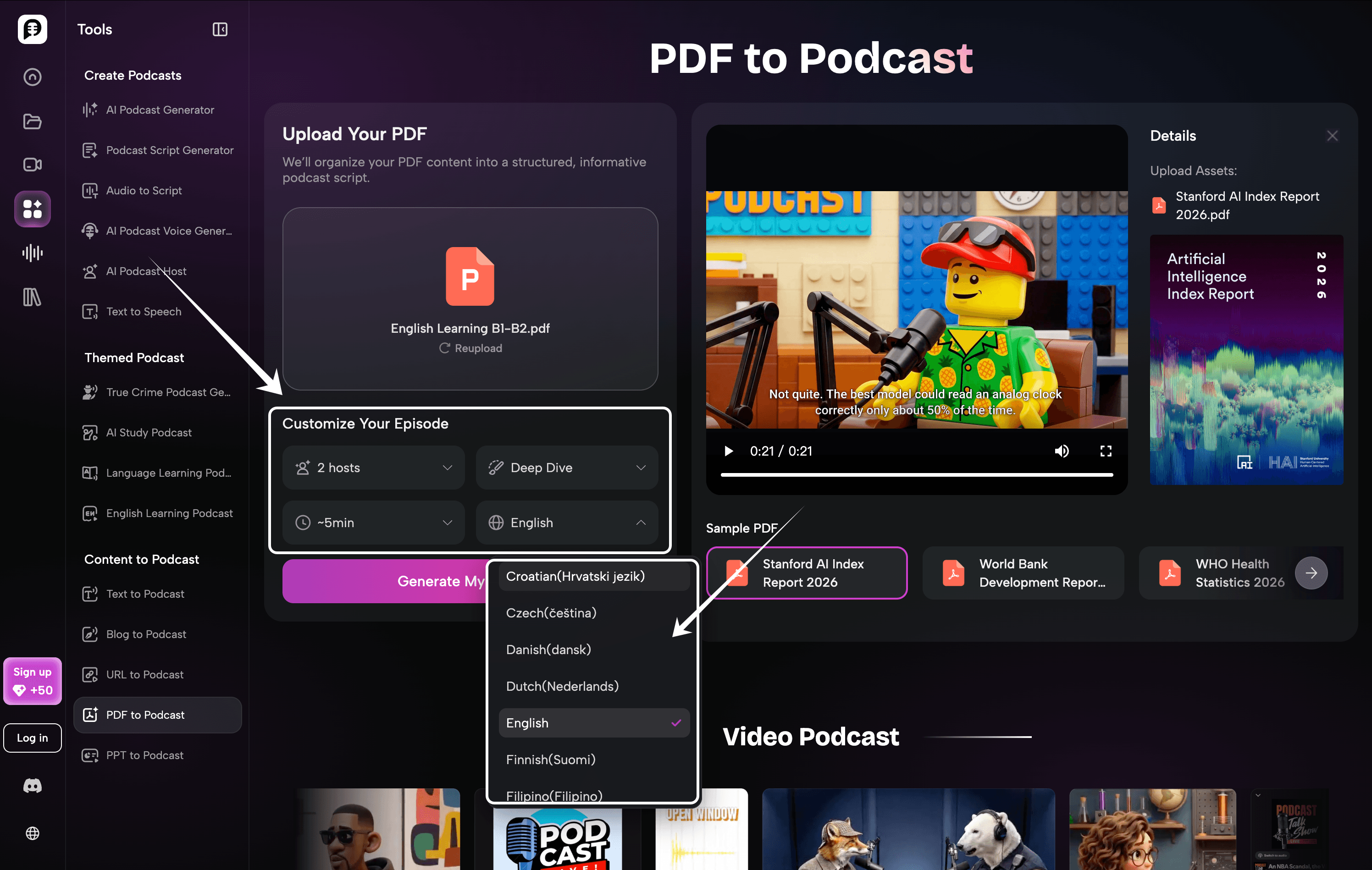
Before generation, select the choices that affect how the material will sound:
-
Host format: use one host for a concise explanation; use two hosts when questions, examples, and contrast will help the listener.
-
Style: choose a format that matches the material. An educational deck may suit a clear explanatory style, while a trend report can work better as a discussion.
-
Length: do not choose a 10-minute episode for a two-page memo. Match the target duration to the amount of real substance.
-
Language: choose the language your intended audience actually uses, not simply the language of the source file.
The right settings make the output easier to edit. They do not remove the need to review the script.
3. Generate and review the podcast script
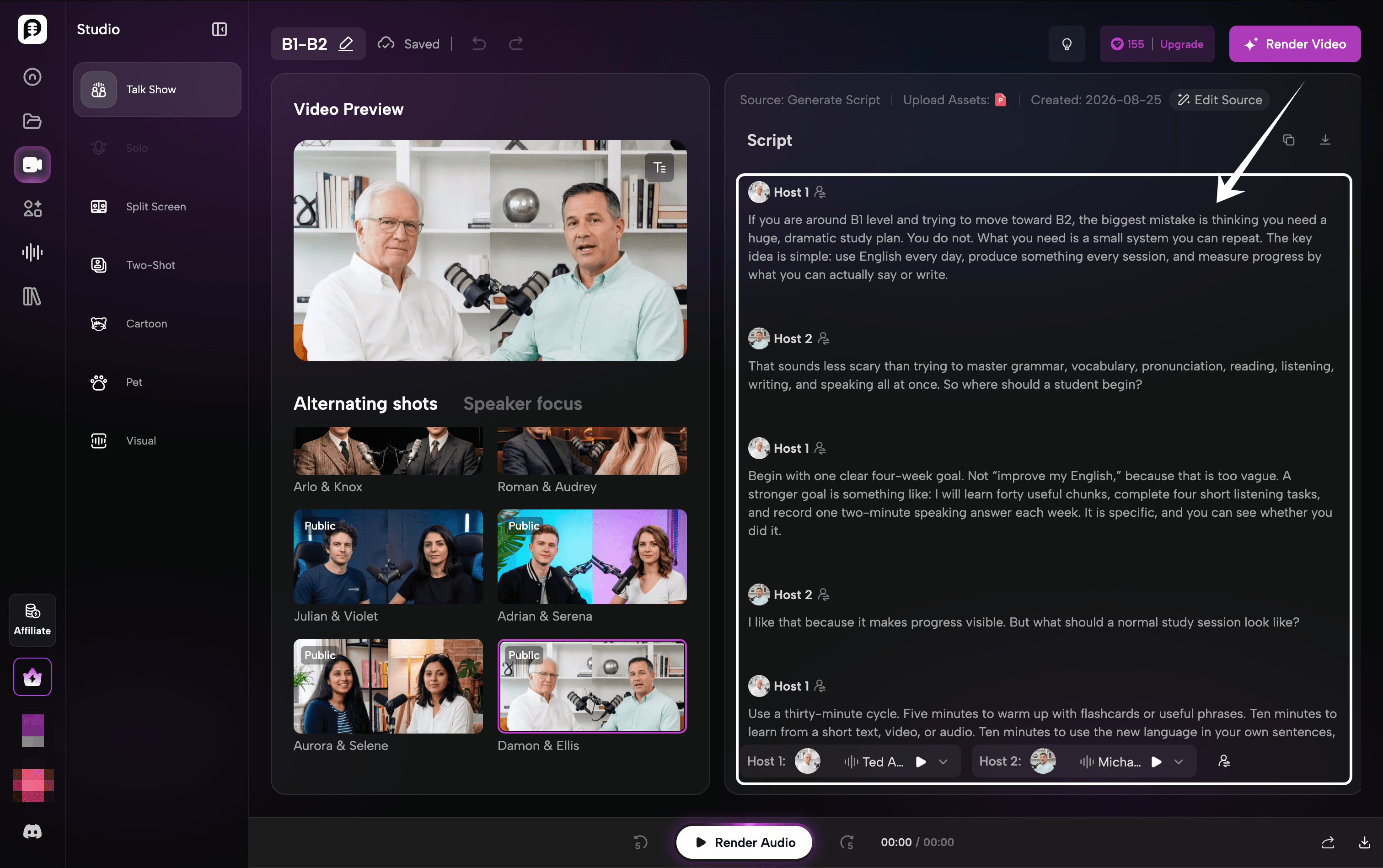
This is the most important quality-control step. Read the generated script before creating the final audio or video.
Check five things:
-
Accuracy: product names, statistics, dates, and quotations must match the source.
-
Structure: the opening should tell listeners what they will learn; the ending should close the argument rather than stop abruptly.
-
Conversation quality: two hosts should add different perspectives, not repeat the same point in alternating sentences.
-
Brand language: replace generic phrases with the language your customers use.
-
Scope: remove side topics that distract from the episode’s main point.
If the document contains dense data, add a plain-language explanation beside the number. Listening audiences cannot pause and scan a chart in the same way that readers can.
4. Move the approved script into a video podcast format
Once the script is ready, use the AI Video Podcast Generator to create the video layer. Choose an AI host, a visual podcast layout, or an audio-first format with a waveform and supporting imagery.
Use an AI host when a familiar on-screen presenter helps the viewer stay engaged. Use a visual or waveform-led format when the content is closer to narration, analysis, or a documentary-style explainer.
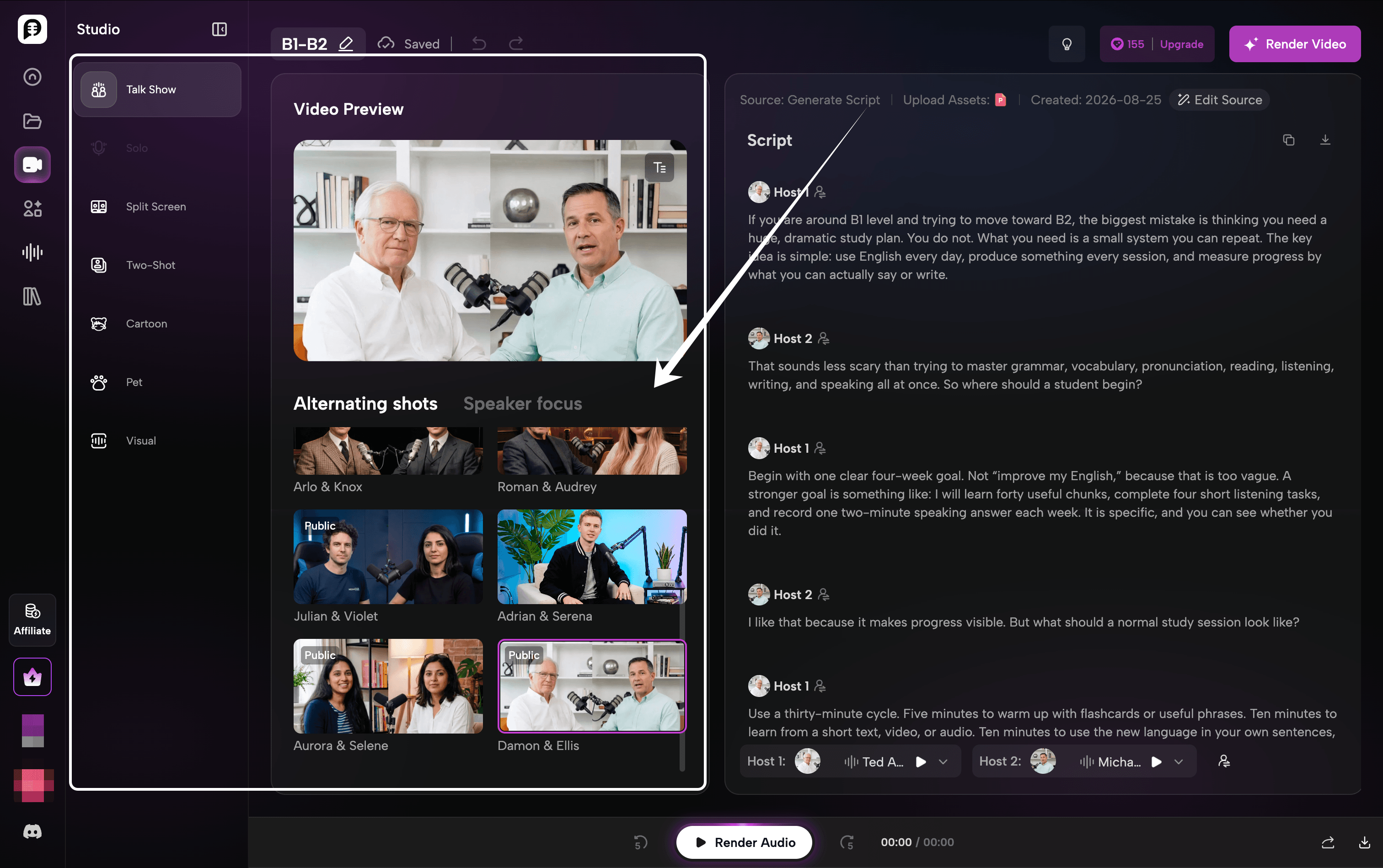
Keep the format aligned with the source:
| Source material | A useful video approach |
|---|---|
| Training PDF | A clear host-led explainer with captions |
| Webinar slides | A two-host recap with supporting visuals |
| Product update deck | A concise visual podcast for social and product channels |
| Research report | An audio-first format with simple charts or supporting images |
5. Select hosts, voices, and visual direction
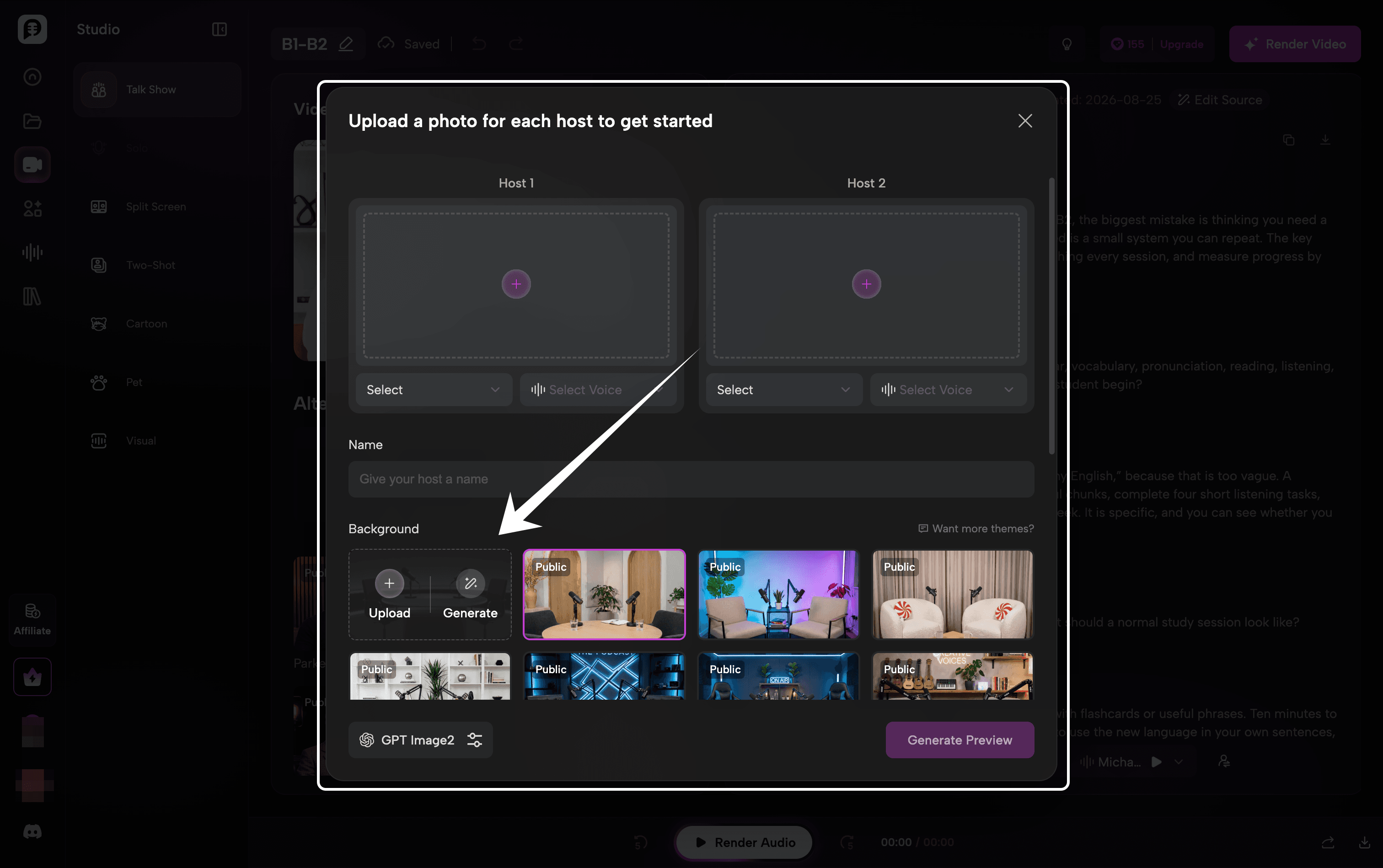
Choose hosts and voices that support the topic. A serious training module, a customer story, and a light industry recap should not all use the same delivery.
At this stage, check the following:
-
Does the voice pace fit the target duration?
-
Are speaker changes easy to follow?
-
Does the host or visual background fit the brand?
-
Can a viewer understand the episode with captions on and sound off?
Avoid over-customizing the first version. Establish a repeatable show format first, then add brand details such as custom hosts, backgrounds, and visual assets as you scale.
6. Preview, caption, and export
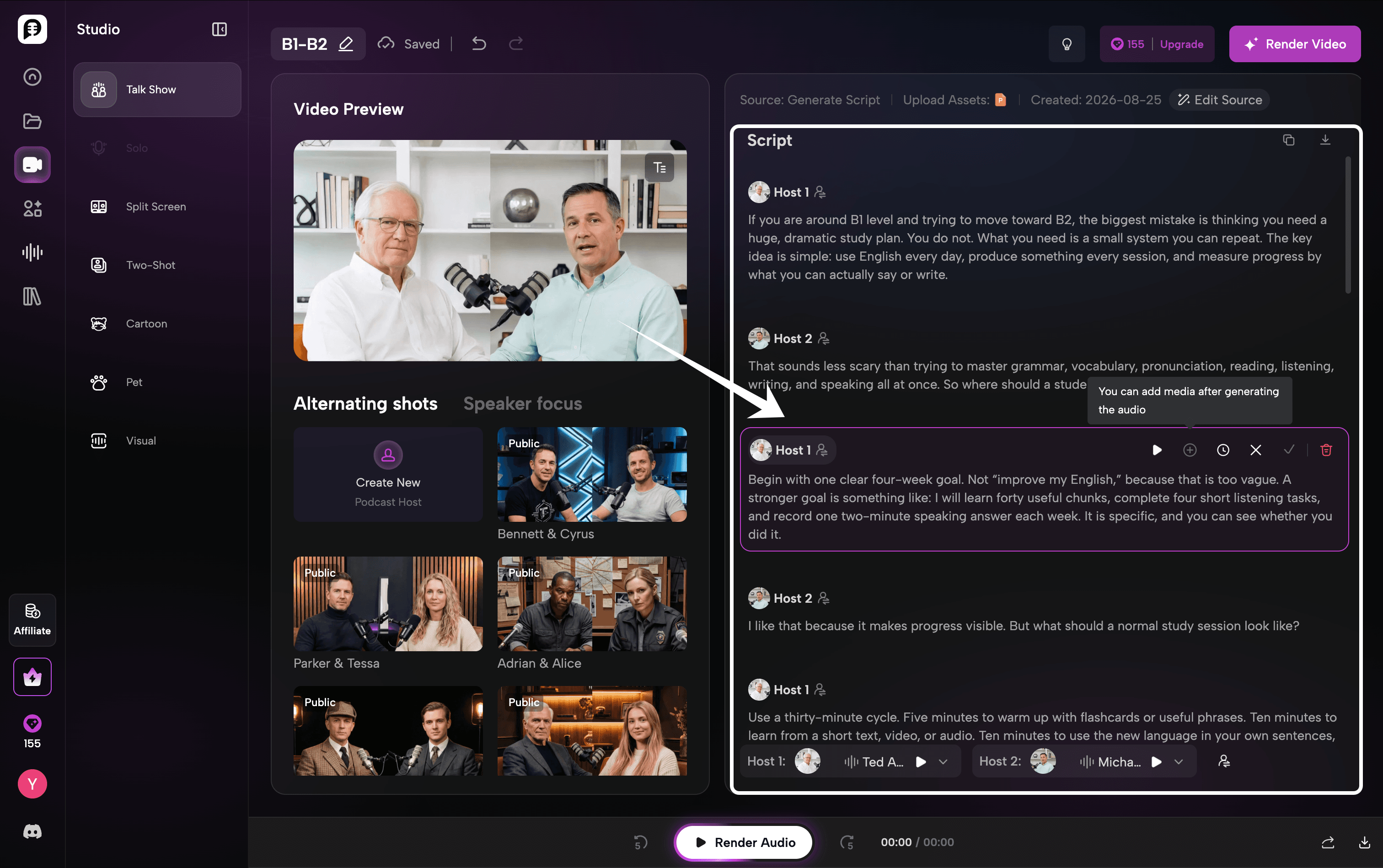
Preview the completed podcast from beginning to end. Listen for mispronounced terms, abrupt speaker handoffs, repeated lines, and claims that need a source or a caveat. You can edit script in PodcastorAI.
Common mistakes when converting documents into podcast videos
Reading the source word for word
Document prose is usually too dense for audio. Convert it into shorter spoken sentences, add transitions, and explain why each point matters.
Skipping script review
AI can create a fast first draft, but it cannot verify your product facts or decide which internal nuance matters to your audience. Keep a human review step in every publishing workflow.
Making the episode too long
More pages do not automatically mean a longer episode. A short episode with one useful takeaway is more valuable than a long narration with repeated points.
Treating video as a decorative afterthought
Choose a visual format that helps comprehension. Captions, a clear host, supporting images, and predictable layouts do more for retention than a busy background.
Why use PodcastorAI for document-to-video content?
Turning documents into podcast videos is not just about converting text into audio. A good document-to-video workflow needs to transform written information into a structured, engaging, and reviewable content format.
PodcastorAI helps solve the common challenges of document-to-video creation:
Transform documents into natural conversations
Instead of simply reading documents word for word, PodcastorAI analyzes your source material and generates structured podcast scripts designed for spoken delivery.
It helps turn dense written content into clearer conversations with introductions, explanations, and natural transitions, making complex information easier to understand.
Keep control with editable AI-generated scripts
AI can accelerate content creation, but human review is still important.
PodcastorAI allows creators to review and edit generated scripts before producing the final podcast. You can adjust key points, remove unnecessary sections, and make sure the content matches your intended message.
Create focused episodes from long documents
Long documents do not always need long episodes.
PodcastorAI helps transform your source material into focused podcast content by organizing key ideas into structured discussions. Creators can choose the format and length that best fits their audience.
Turn information into engaging video experiences
A document alone is designed for reading. A podcast video requires a different storytelling approach.
PodcastorAI combines AI hosts, voices, and visual formats to help transform static documents into more engaging video content. Creators can choose different podcast styles and visual presentations based on their publishing goals.
Frequently asked questions
Can I turn a PDF into a video podcast?
Yes. Start by using the PDF as the source for a podcast script, then review the script and use a video podcast workflow to add voices, hosts, captions, and a video layout.
Can I turn PowerPoint slides into a video podcast?
Yes. PPT files work especially well when the slides have a clear narrative. Add context for charts and visuals before generating so the spoken episode makes sense without the deck on screen.
Do I need to record myself?
No. A video podcast workflow can use AI voices and AI hosts, which is useful when you want a camera-free or repeatable production process. You should still review the script and final output before publishing.
What is the best length for a document-based podcast episode?
Choose the shortest length that fully answers the listener’s question. A focused 3-5 minute explanation can be stronger than a longer episode that merely reads the original document aloud.
Should I include captions in a video podcast?
Yes. Captions improve accessibility and help viewers follow the episode when they are watching without audio.
Turn your next document into an Podcast
Your next podcast may already exist in a PDF, a training deck, or a report your team has finished. Start with the most focused document. Review the generated script, choose the simplest video format that fits the message, and make one short test episode before you scale the workflow. That sequence keeps the content useful for listeners and manageable for the team that publishes it.
Try PodcastorAI to turn that source material into a podcast-ready script, audio episode, or video podcast without setting up a camera or recording studio. Start with one focused document, use the review checklist in this guide, and publish only when the script, audio, captions, and video support the same takeaway.