
Quick answer:
| Tool | Best for | Pricing | Hands-on generation cost |
|---|---|---|---|
| Higgsfield | Lifelike studio visuals, camera control, and short-form social clips. | Starter $15/month Plus $49/month Ultra $99/month |
30s Seedance 2.5: 480 credits ≈ $23.52 15s Seedance 2.0: 90 credits ≈ $4.41 |
| PodcastorAI | Turning PDFs, articles, and other source material into editable audio or video podcasts. | Free trial Audio Creator from $9.99/month Video Starter from $26/month. |
4:20 audio: 16 credits ≈ $0.53 4:20 video: 43–44 credits ≈ $1.42 |
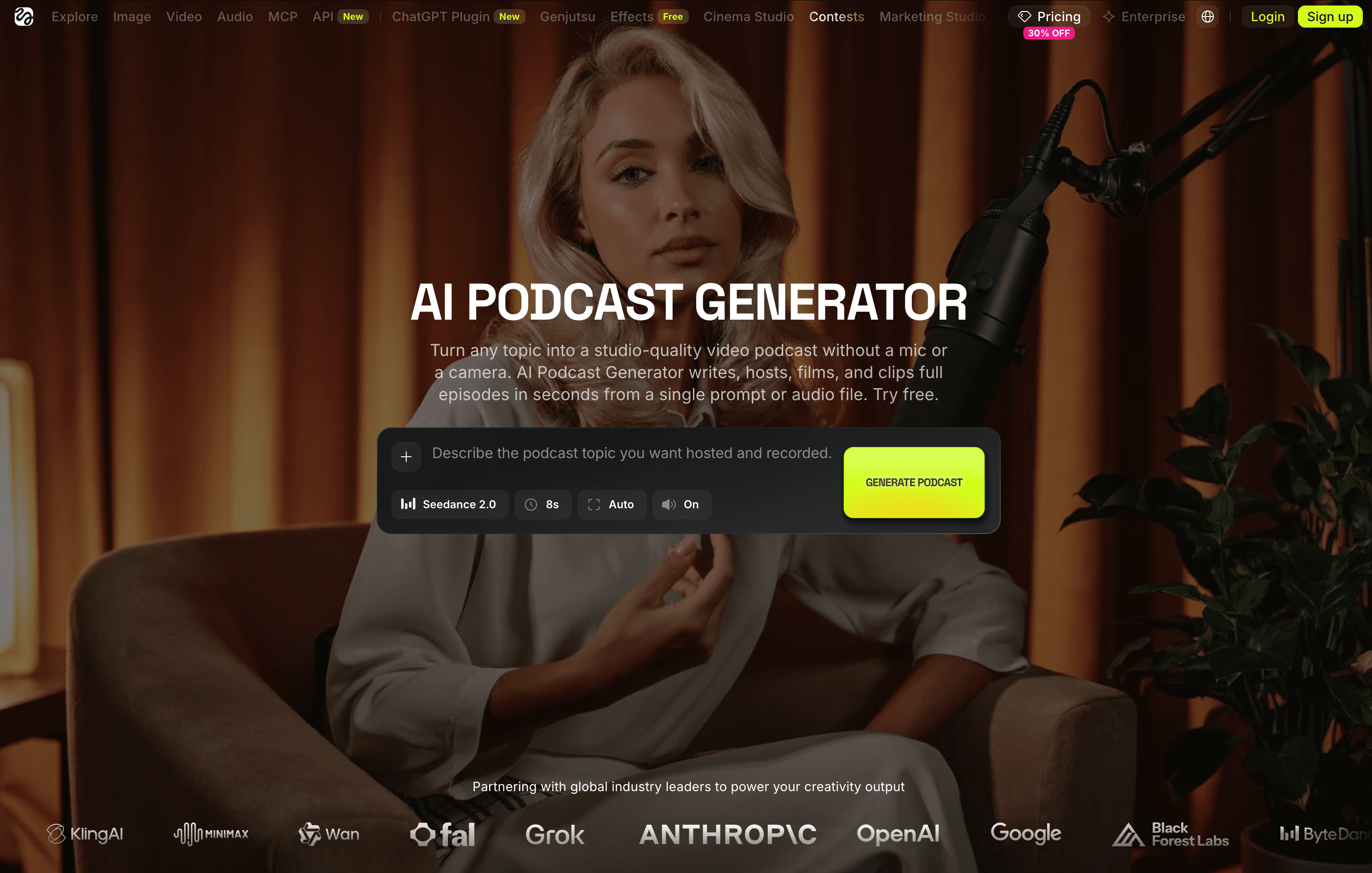
Higgsfield can make AI video podcasts. Its AI Podcast Generator says it can turn a topic or script into a conversation with lifelike hosts, put an existing audio episode on screen, and cut an episode into social clips. If you came here assuming Higgsfield only makes short cinematic videos, its podcast offering is broader than that.
But the best Higgsfield alternative for podcasts depends on what you are starting with. If you want to direct a photoreal studio scene and make video clips, Higgsfield is compelling. If you have a PDF, article, URL, or rough idea and want to shape it into a script, audio podcast, andvideo podcast in one workspace, PodcastorAI offers an easier workflow built around that job.
Higgsfield vs PodcastorAI: podcast features at a glance
| Question | Higgsfield | PodcastorAI |
|---|---|---|
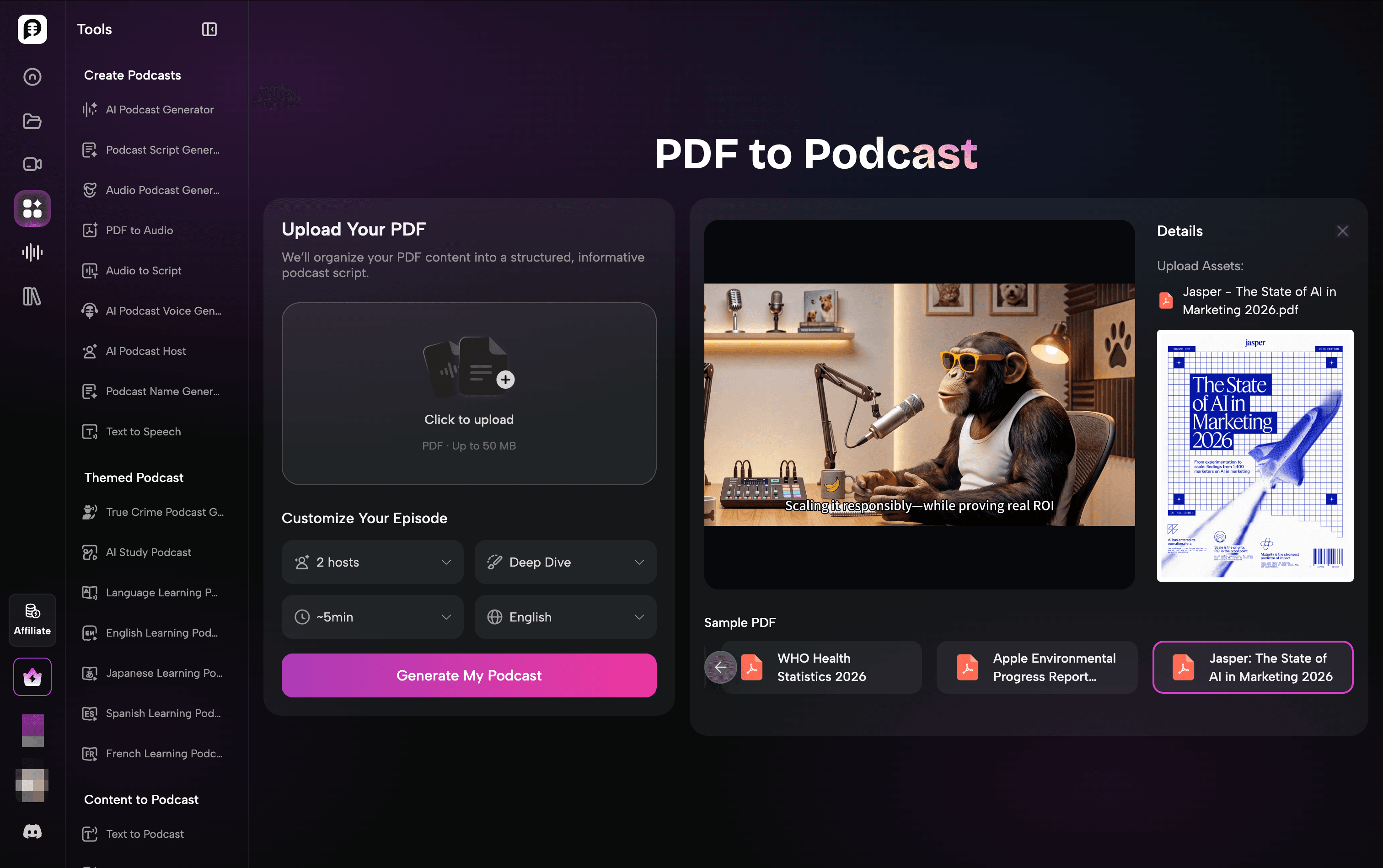
| What can I start with? | Topic, prompt, script, or existing audio | Topic, URL, PDF, document, script, or audio, |
| Can it draft a conversation? | Yes | Yes |
| Can I adjust the script before finishing? | Yes | Yes |
| What can the podcast look like? | Photoreal hosts, styled studio, camera moves, and model-led scene generation. | Realistic, cartoon, or pet hosts; solo, talk show, split screen, two-shot, and visual podcast formats. |
| Can I make audio without an AI-hosted video? | Yes | Yes. |
| How is pricing presented? | Higher starting price with a broader subscription that bundles podcast creation with other advanced AI tools. No separate audio-only plan, which can be less cost-efficient for audio-focused creators. | Separate audio and video plans with clear pricing, making it easier to pay specifically for the type of podcast content you want to create. |
Where PodcastorAI fits better: turn source material into an episode
Suppose you already have a research PDF, a course handout, or a published article. The hard part is often deciding what the hosts should say, which details should stay faithful to the source, and whether the podcast needs a visual version at all.
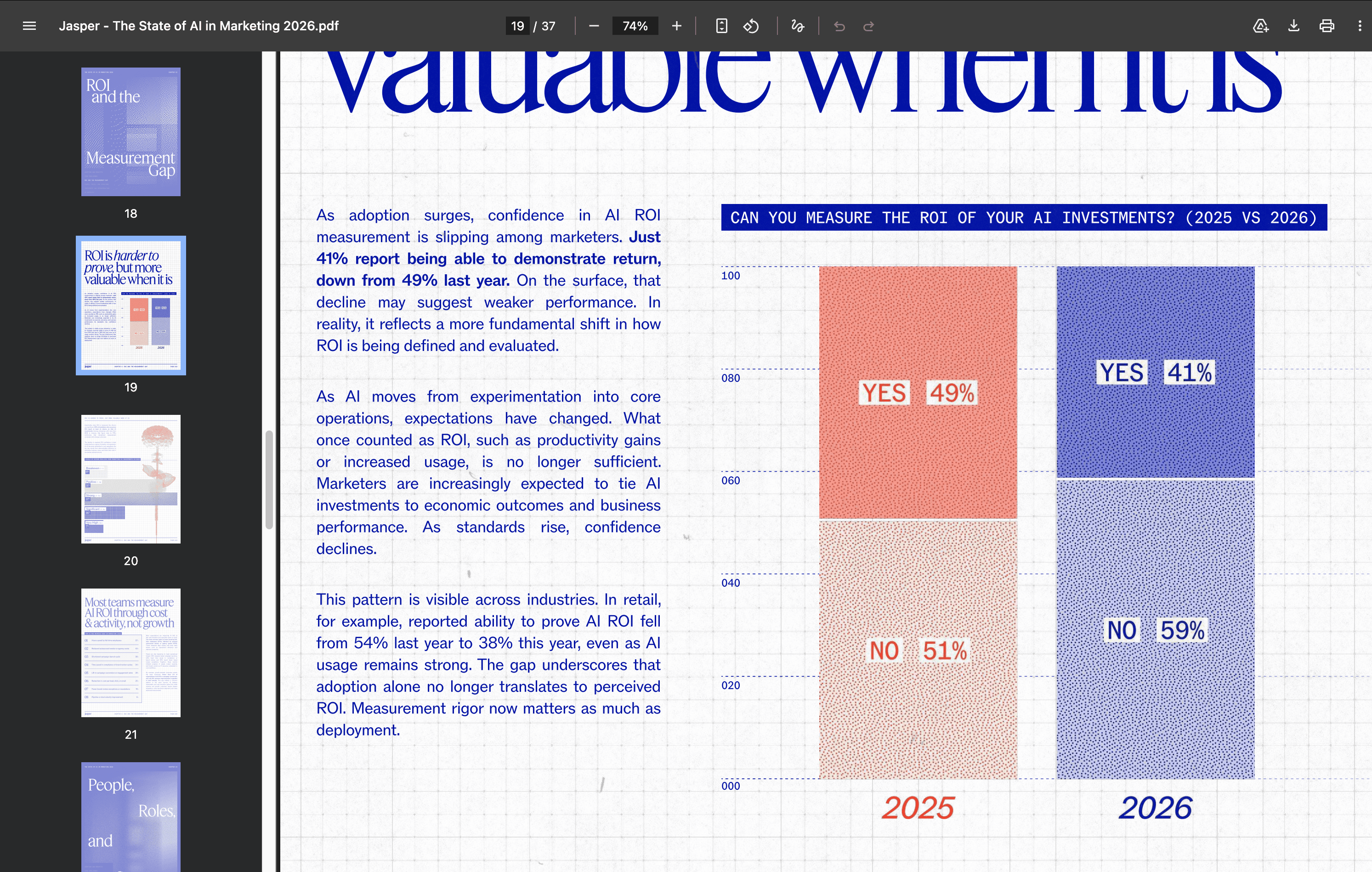
PodcastorAI studio accepts a link, document, topic, or existing audio. You can start with Generate Script, Upload Script, and Upload Audio. After generating a script, you can review the dialogue, choose voices and a show format, then make audio or add a visual layer. That order is useful when the words matter as much as the picture.
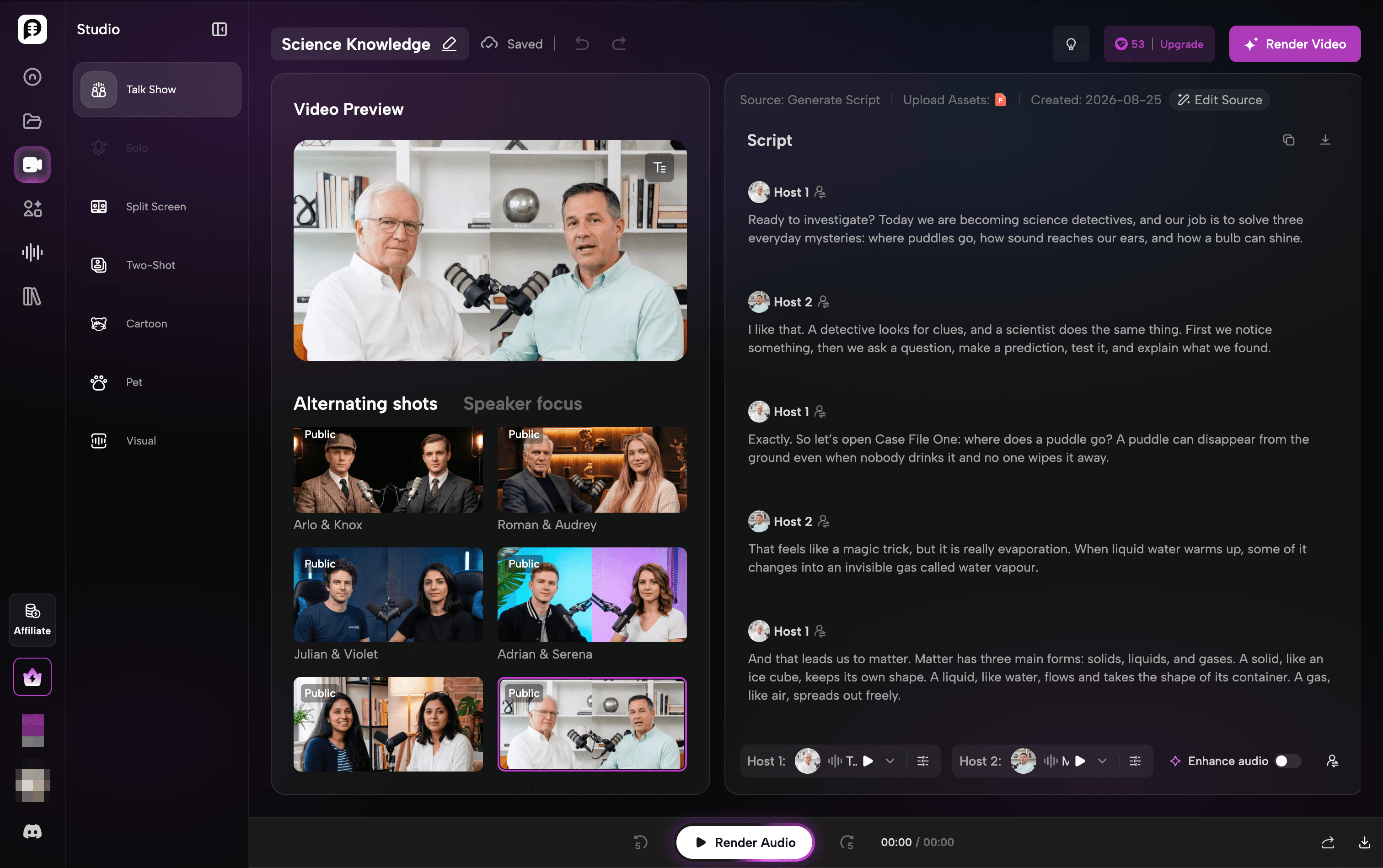
For example, a teacher could upload a short lesson, check whether the script preserves the definitions and examples, and then make an audio revision episode. A newsletter writer could start with an article, turn it into a conversation, and choose a two-host video for YouTube.
Hands-on test: Turning a science presentation into a video podcast
To make this comparison as practical as possible, I tested the workflow with a real Grade 5-8 science presentation I created about forces, gravity, friction, and magnets. You can view the exact presentation I used for the test here: Forces & Super Magnets!
Testing PodcastorAI
With PodcastorAI, I could start with the presentation itself. I uploaded the same Forces & Super Magnets! PowerPoint, added a short instruction for a Grade 5-8 science podcast, selected two hosts, a Deep Dive format, and an approximate five-minute length, then generated the script.
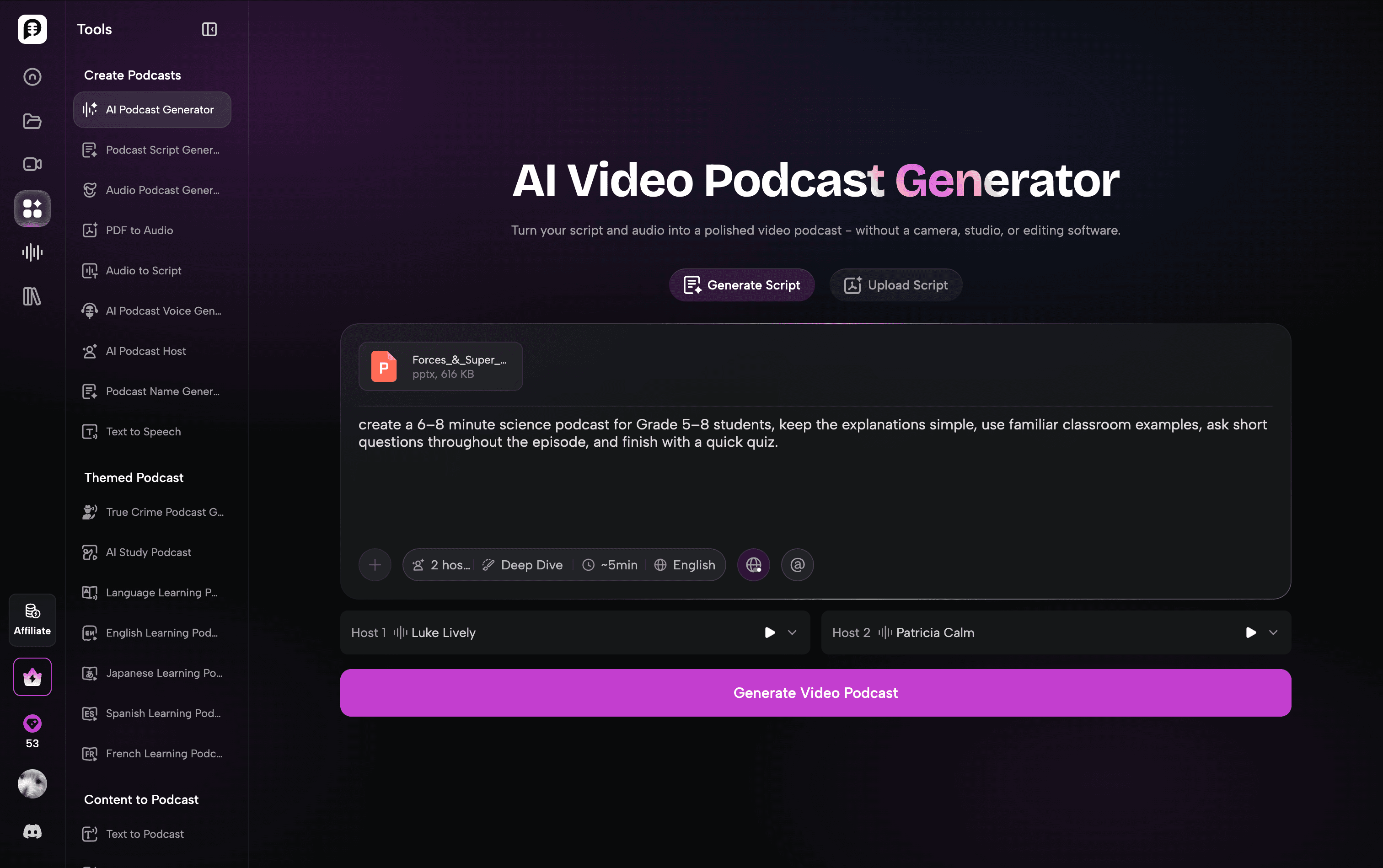
Generating the script cost 3 credits, and importantly, the script remained editable before I committed to audio or video.
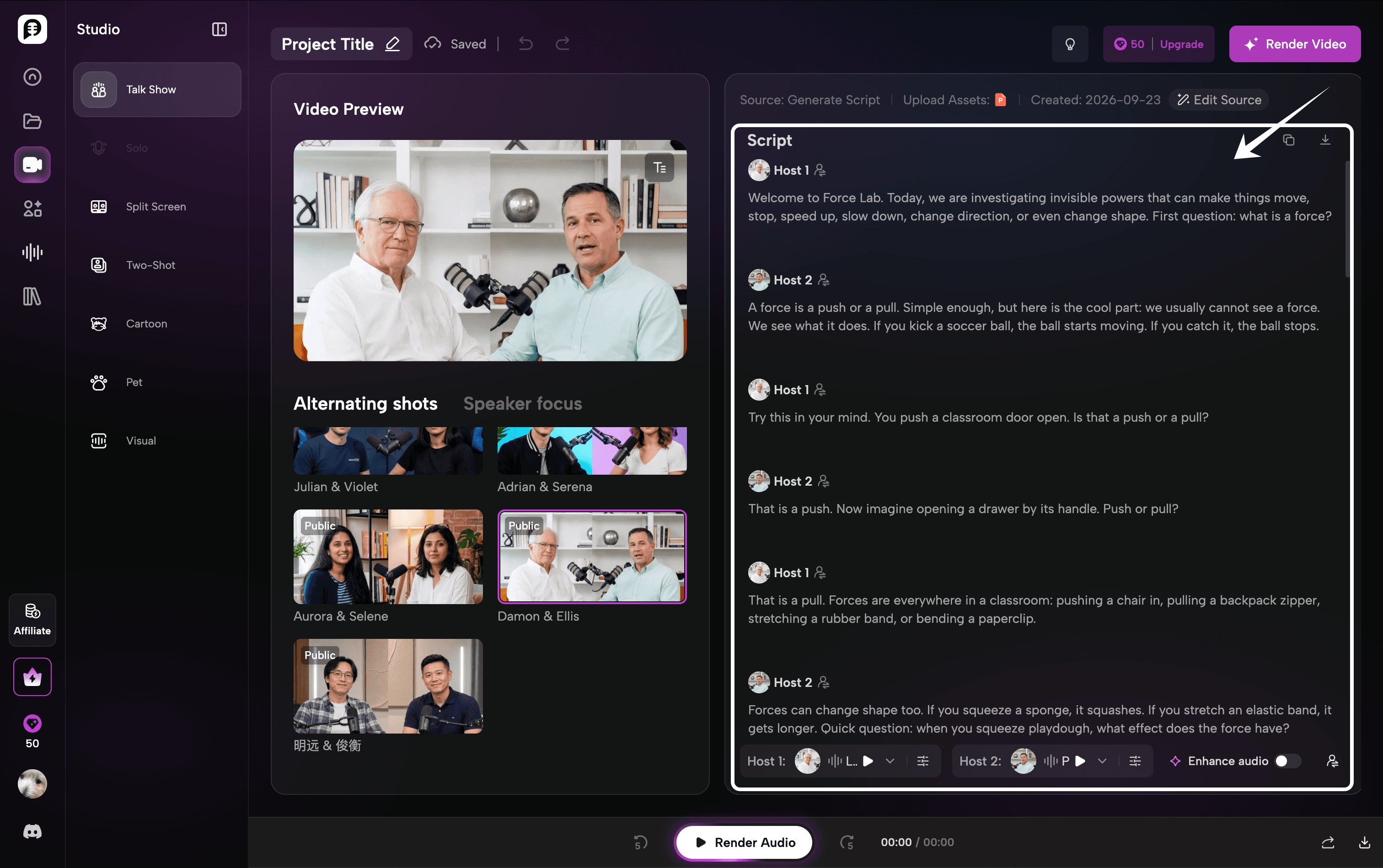
The first draft was better than I expected for this classroom test. Instead of simply summarizing the slides, it turned the material into a two-host conversation. It opened by introducing the class as a “Force Lab,” explained a force as a push or pull, and then used familiar examples such as kicking a soccer ball, opening a classroom door, pulling a drawer, and squeezing a sponge. It also inserted questions such as “Is that a push or a pull?”, which matched the interactive style I wanted for younger students.
I would still review the wording before using any AI-generated lesson with my class, but the draft already preserved the main teaching structure of my presentation while making it sound more natural when spoken aloud.
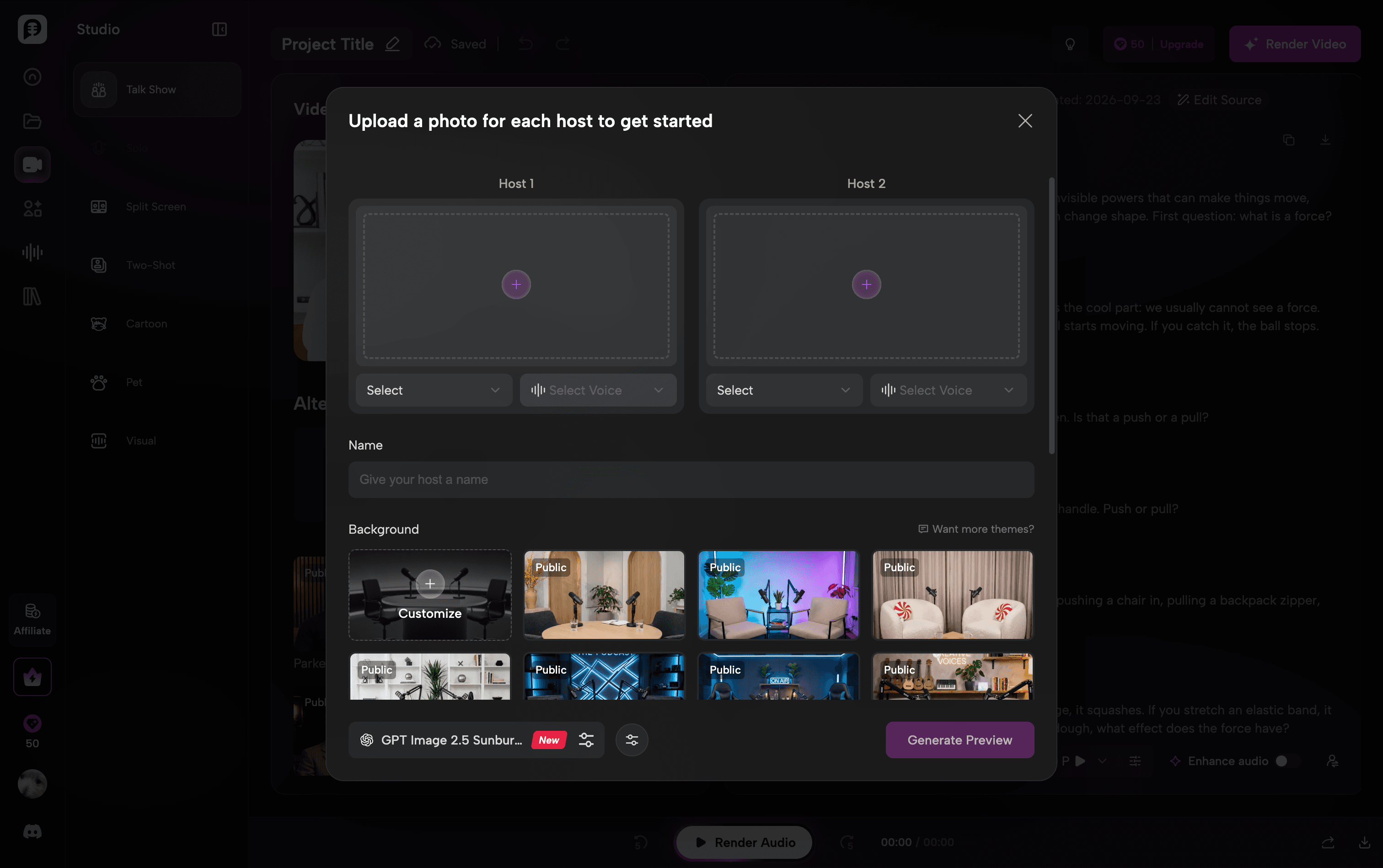
The hosts were customizable too. I could choose existing hosts and backgrounds, or upload photos for each host and select their voices. That matters if, as a teacher or creator, I want to build a recognizable personal brand rather than publish every lesson with generic AI presenters.
For example, I could upload my own photo, pair it with a voice, choose a classroom or studio-style background, and use that identity across future educational episodes.
From there, I could continue working on the episode in the same studio. I could edit the dialogue, preview or change each voice, and decide whether I wanted an audio podcast or a full video version.
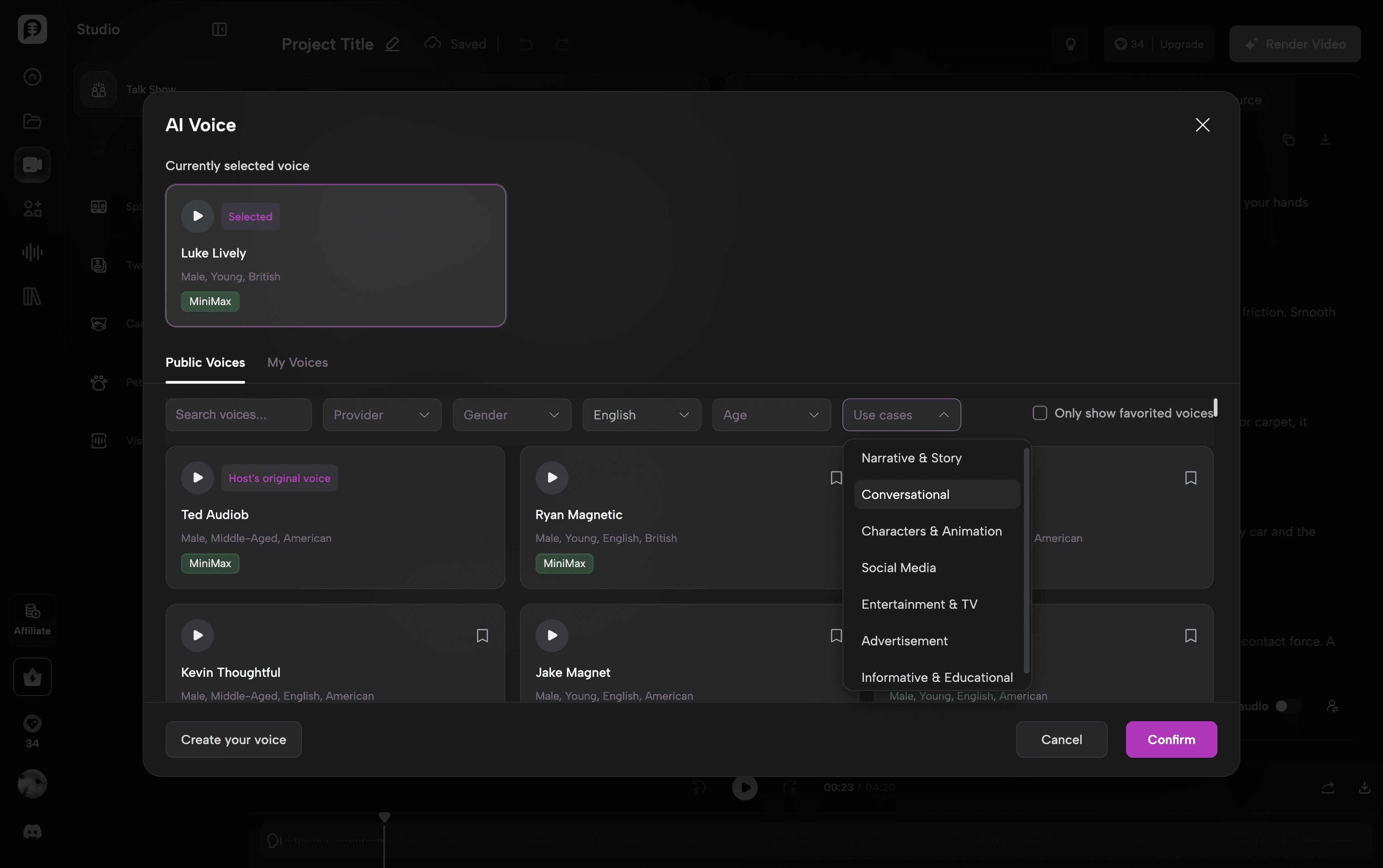
One small feature I found surprisingly useful was voice filtering by use case. Instead of listening through a large voice library one by one, I could narrow the options to categories such as Conversational, Narration & Story, or Informative & Educational. For a teacher, that makes finding an appropriate classroom voice much faster.
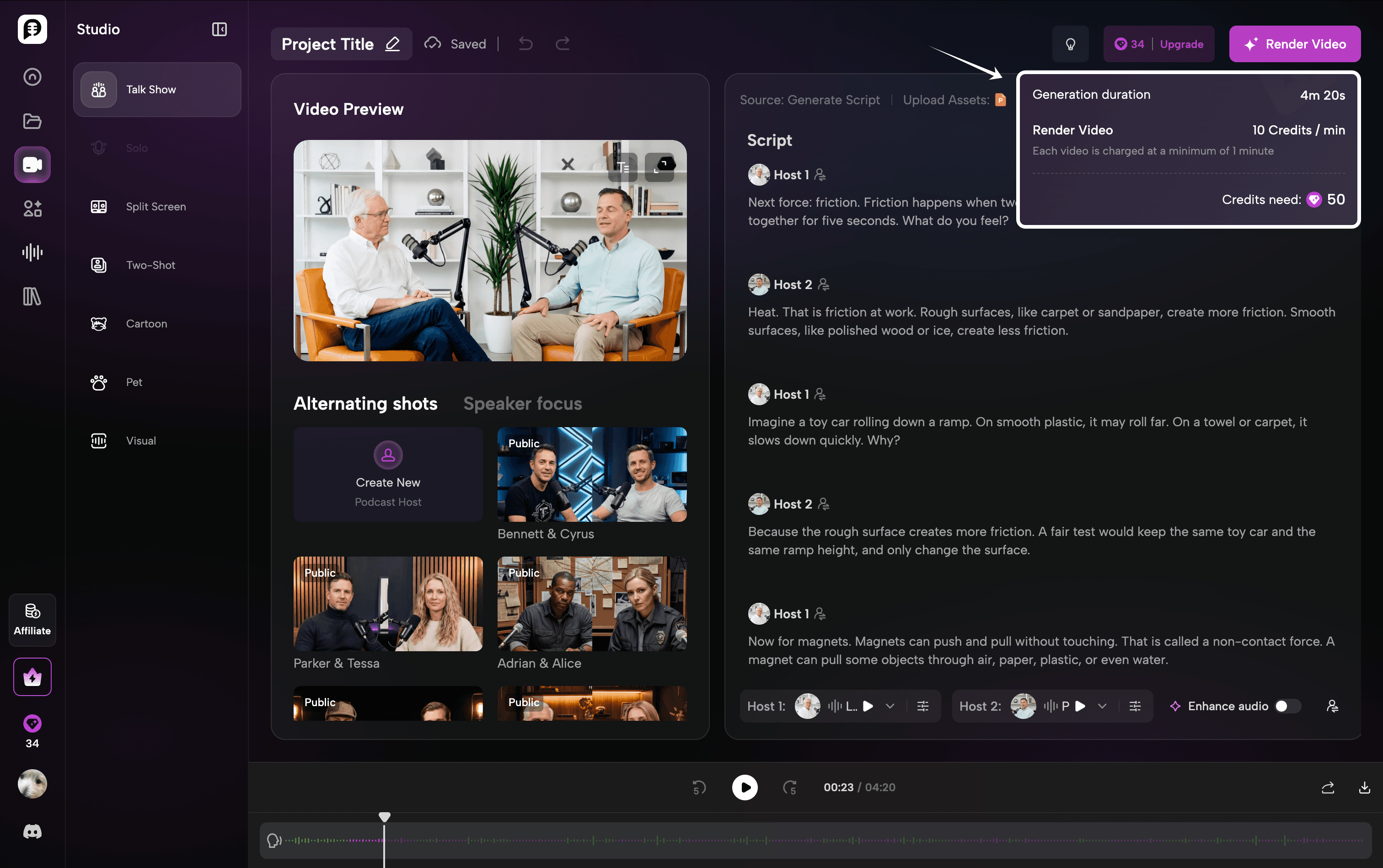
The pricing during my test was also easier to understand because audio and video were treated separately. Audio generation was charged at 1 credit per 15 seconds, while video rendering was shown at 10 credits per minute, with a one-minute minimum for video.
My finished audio episode came out to 4 minutes 20 seconds, and in this test my credit balance dropped by 16 credits for the audio generation. That made it much easier for me to understand what producing a longer lesson would cost before deciding whether I also wanted to render the video.
What stood out in this test
The biggest advantage was not any single AI feature. It was how little I had to rebuild.
I already had the lesson. PodcastorAI let me use that presentation as the source, generate an editable student-friendly conversation, choose suitable educational voices, and then decide whether the final output should be audio or video.
For teachers, marketers, educators, and other users who are less familiar with complex AI video workflows, this feels much closer to repurposing existing content than producing a video from scratch.
Testing Higgsfield
Testing Higgsfield felt quite different from PodcastorAI.
The first limitation I ran into was file input. In the video creation interface I tested, Higgsfield let me add images, video, or audio as references, but not a PowerPoint or PDF directly. So I could not simply upload the same science presentation and ask it to turn the lesson into a podcast.
Instead, I had to convert the lesson into a detailed prompt myself. I explained that I was a U.S. teacher creating content for Grade 5–8 students, listed the science concepts I wanted covered, and specified the tone, structure, examples, and conversation style.
I’m a U.S. teacher creating a video podcast for students in grades 5–8. Topic is “Forces & Super Magnets!” . Create a 4–5 minute conversation between two hosts that explains pushes and pulls, gravity, friction, and magnetic attraction and repulsion. Use clear, age-appropriate language and everyday examples. Include one question students can pause to answer and a short recap. Adapt the lesson for grades 5–8 rather than repeating the slide text or its Year 4 sign-off. Keep the science accurate: explain that air resistance affects the paper-drop experiment, and that magnets attract only certain materials.
That works if you are comfortable writing detailed prompts, but it adds more preparation for teachers or creators who already have complete lesson materials and simply want to repurpose them.
The second limitation was duration. In my test, the longest generation option available was 30 seconds. That is useful for Shorts, ads, social clips, or individual visual scenes, but less practical for turning a full lesson into a 4–8 minute educational podcast. A longer episode would need to be split into multiple clips and assembled later.
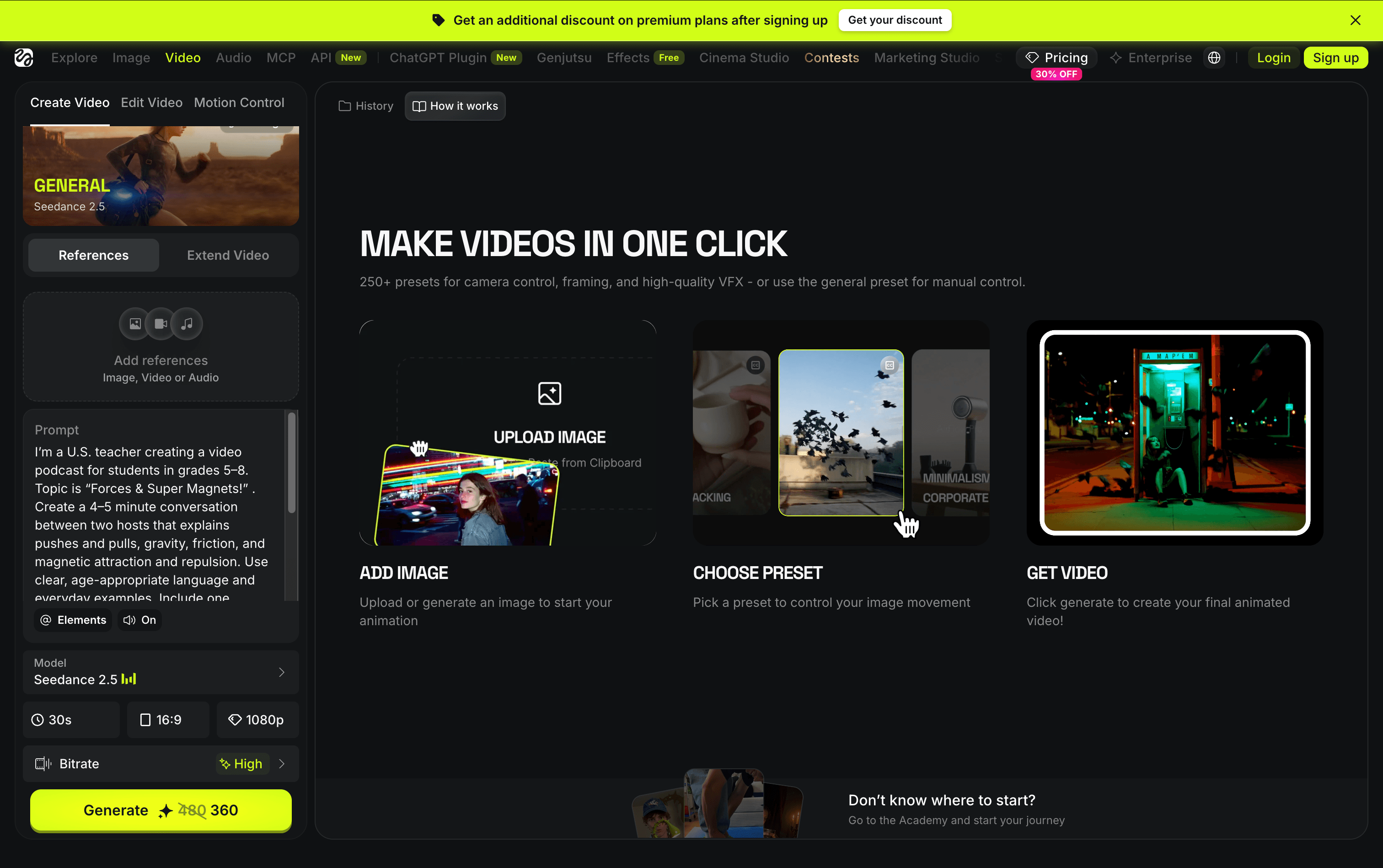
Pricing also required some attention. Higgsfield initially selected Seedance 2.5, where a 30-second generation was listed at 480 credits before the displayed discount. The Plus plan shown during my test included 1,000 credits for $49 per month, so 480 credits represents about $23.52 of that monthly credit allocation.
Switching models reduced the cost significantly. With Seedance 2.0, a 15-second generation required 90 credits, or roughly $4.41 based on the same Plus plan.
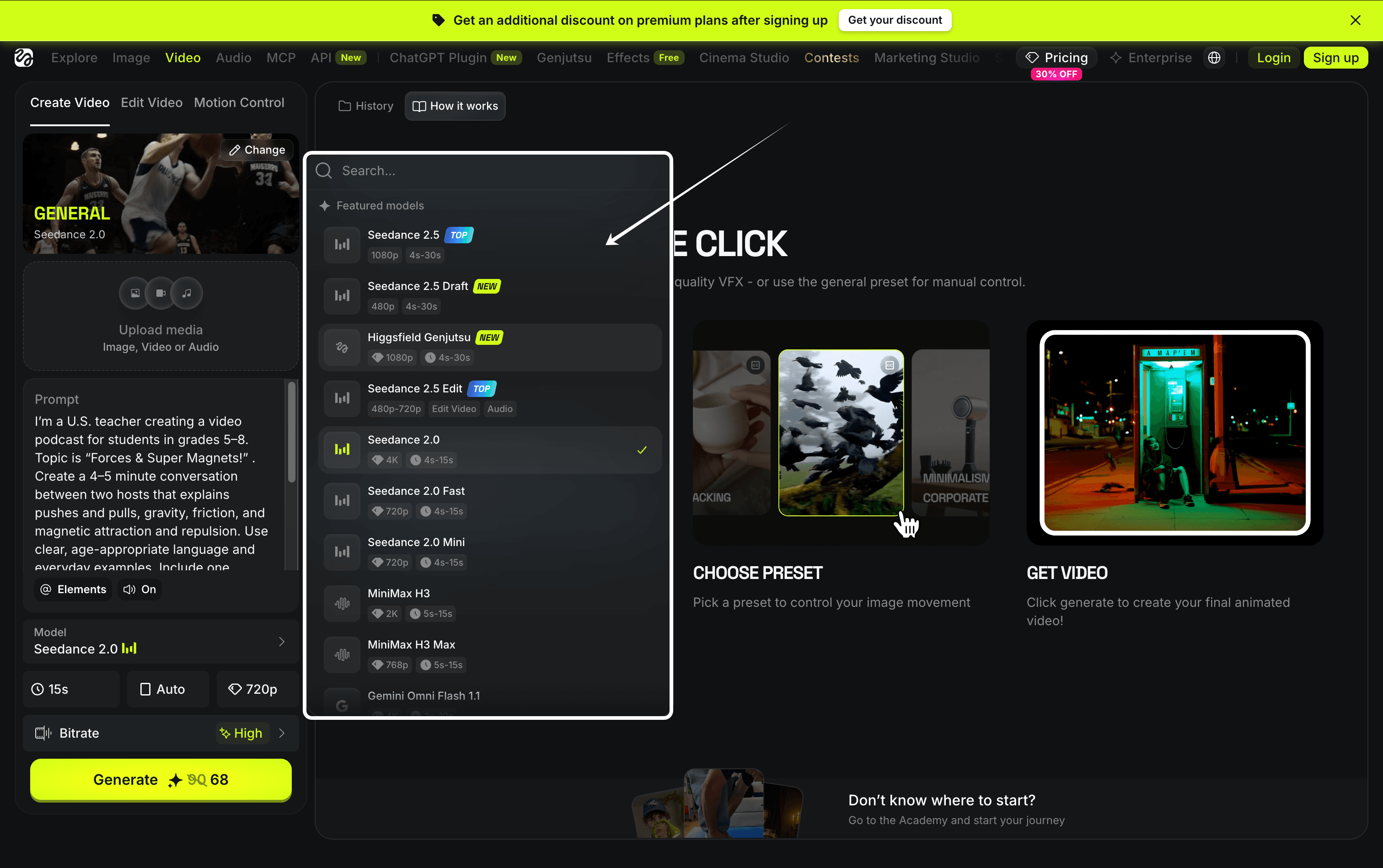
This does not mean every Higgsfield video is expensive. The actual cost depends heavily on the model, duration, and settings you choose. But it does mean creators need to pay attention to those choices before generating.
Overall, Higgsfield makes more sense to me for creators who want fine control over short-form AI video, are comfortable choosing models and settings, and are willing to build content clip by clip.
For this classroom test, though, my goal was different: I wanted to turn an entire science lesson into something students could listen to from beginning to end. For that kind of source-to-podcast use case, the extra prompting, short generation limits, and model decisions made the process feel less direct.
What I learned from the test
The biggest difference was not simply video quality or price. It was what each product is designed around. Higgsfield feels closer to a creative AI video production tool for short, highly controlled visual content.
PodcastorAI is more straightforward when you already have a presentation, PDF, article, or lesson and want to turn that material into a complete audio or video podcast.
Where Higgsfield may be the better choice
Based on my hands-on test, Higgsfield is a better fit for creators who want more control over short-form AI video generation rather than a direct source-to-podcast workflow.
You can choose different models, adjust duration and resolution, and use image, video, or audio references. That makes it useful for Shorts, social videos, ads, cinematic clips, and scene by scene video creation. Higgsfield also works well for users who are comfortable with prompt writing, model selection, and AI video settings. In my test, I could not upload the PowerPoint directly, so I had to turn the lesson into a detailed prompt first.
In short, Higgsfield is better suited to creators who prioritize visual control and short-form video production. If your goal is to turn an existing PPT, PDF, or article into a complete podcast, the workflow is less direct.
What about pricing?
PodcastorAI’s pricing was easier for me to estimate because the credit rates are tied directly to podcast length.
The plans shown during my test started at $9.90/month for 300 credits, followed by $26/month for 600 credits and $49/month for 1,500 credits. There is also a free trial with 50 credits.
For audio, the rate was 1 credit per 15 seconds, or about 4 credits per minute. That means 300 credits can cover up to 75 minutes of audio, while 1,500 credits can cover up to 375 minutes.
In my actual test, the finished science podcast was 4 minutes 20 seconds long, and generating the audio reduced my balance by 16 credits. Based on the $9.90 Audio Creator plan, that represents roughly $0.53 worth of credits for the episode.
Video rendering was listed at 10 credits per minute, so a 4-minute-20-second video podcast would require roughly 43–44 credits based on the displayed rate. On the $49 Creator Pro plan, that is around $1.42 worth of credits.
| PodcastorAI usage | Credit cost | Approx. cost |
|---|---|---|
| My 4:20 audio test | 16 credits actually used | ~$0.53 on the $9.90 plan |
| 1 minute of audio | ~4 credits | ~$0.13 on the $9.90 plan |
| 1 minute of video | 10 credits | ~$0.33 on the $49 Creator Pro plan |
| 4:20 video podcast | ~43–44 credits | ~$1.42 on the $49 Creator Pro plan |
This is quite different from my Higgsfield test. There, 30 seconds with Seedance 2.5 was listed at 480 credits, which represented about $23.52 of a $49/1,000-credit Plus plan before the displayed discount. Even switching to Seedance 2.0 brought a 15-second generation to roughly $4.41 worth of credits.
The comparison is not completely apples-to-apples: Higgsfield is generating higher-control AI video clips, while PodcastorAI is producing a podcast-style audio or video episode. But for someone whose main goal is longer-form podcast creation, PodcastorAI’s cost is much easier to predict by duration.
Which Higgsfield alternative should you choose for podcasts?
The better choice depends on what you are trying to create.
If you already have a PPT, PDF, article, notes, or an idea and want to turn it into a complete podcast, PodcastorAI offers the more direct workflow. In my test, I could upload the presentation, generate and edit the script, choose voices, and continue to audio or video production in the same studio. It required much less manual setup.
Higgsfield makes more sense when the video itself is the main creative output. Its model choices, visual controls, and short-form generation are better suited to creators making cinematic clips, Shorts, ads, or individual scenes and who are comfortable working with prompts and video-generation settings.
So if your priority is repurposing existing content into a longer audio or video podcast, PodcastorAI is worth trying.
Frequently asked questions
Is Higgsfield good for making podcasts?
Yes, especially if your focus is on short form AI video, cinematic visuals, and scene level control. Higgsfield is better suited to creators who are comfortable working with prompts, model settings, and short video generation. For longer podcast episodes built from documents or presentations, the workflow can require more manual setup.
What is a good Higgsfield alternative for podcasts?
PodcastorAI is a practical Higgsfield alternative if you want to turn PPTs, PDFs, articles, URLs, notes, scripts, or audio into a complete podcast. It combines source input, script generation and editing, voice selection, and audio or video podcast creation in one workflow.
Can I turn a PowerPoint into a podcast with PodcastorAI?
Yes. In my hands-on test, I uploaded a PowerPoint presentation directly, generated an editable two-host script, selected voices, and then continued to audio or video production in the same studio.
Can Higgsfield upload PowerPoint or PDF files directly?
In the Higgsfield video creation interface I tested, I could add image, video, or audio references, but I could not upload a PowerPoint or PDF directly. I had to convert the lesson into a detailed prompt first.
Which is better for long-form podcasts: Higgsfield or PodcastorAI?
For longer podcasts built from existing source material, PodcastorAI offers a more direct workflow. Higgsfield worked better in my test for short form video generation, while PodcastorAI was easier for turning a full lesson into a multi-minute audio or video podcast.
How much does PodcastorAI cost for podcast generation?
During my test, PodcastorAI offered a free trial with 50 credits, an Audio Creator plan at $9.90/month, a Video Starter plan at $26/month, and a Creator Pro plan at $49/month. Audio generation was listed at 1 credit per 15 seconds, while video rendering was shown at 10 credits per minute.
How much did your PodcastorAI test cost?
My 4-minute-20-second science podcast used 16 credits for audio generation. Based on the $9.90 Audio Creator plan with 300 credits, that worked out to about $0.53 worth of credits for the episode.
How much does Higgsfield video generation cost?
The cost varies a lot by model and settings. In my test, a 30 seconds Seedance 2.5 generation was listed at 480 credits, while a 15 seconds Seedance 2.0 generation required 90 credits. This means creators need to check the selected model and credit usage before generating.
Who should choose Higgsfield instead of PodcastorAI?
Higgsfield is a better fit if your priority is short-form visual quality, model control, and scene-by-scene AI video creation. It is especially useful for creators making Shorts, social videos, ads, or cinematic clips.
Who should choose PodcastorAI?
PodcastorAI is a better fit if you already have content and want to repurpose it into a longer podcast without rebuilding everything from scratch. That can include teachers, marketers, educators, newsletter writers, and other creators working from presentations, PDFs, articles, or notes.