
Introduction
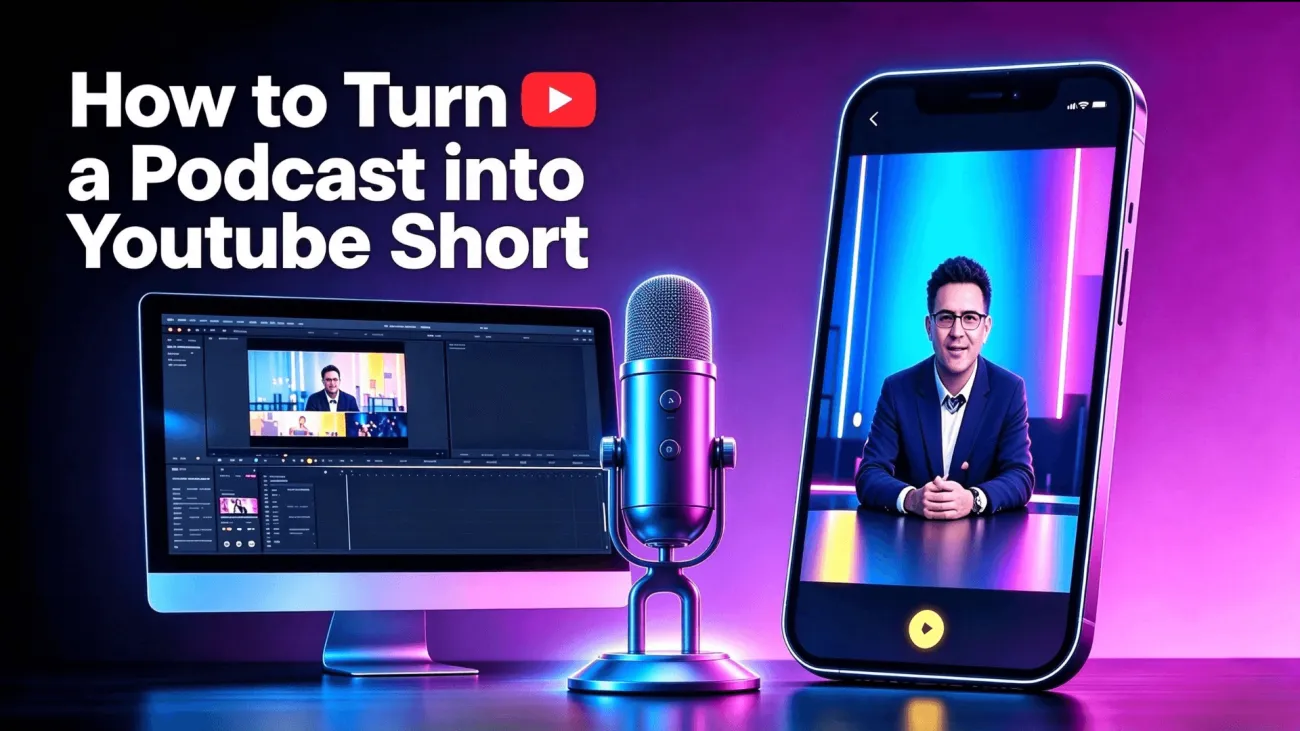
A 45-minute podcast can contain great stories, surprising insights, and memorable conversations, but most new viewers won’t watch an entire episode just to discover them. Turning those highlights into YouTube Shorts gives more people a quick and accessible way to explore your content.
You can create Shorts manually with video editing software or use an AI YouTube Short Maker to simplify the clipping process. This guide covers both approaches to turning an existing podcast episode into short videos ready for YouTube.
Why Turn Your Podcast into YouTube Shorts?
YouTube has become an important destination for podcast audiences. In February 2025, YouTube’s official blog reported that podcast content on the platform had surpassed 1 billion monthly active viewers. Meanwhile, Edison Research’s The Infinite Dial 2025 found that 51% of Americans aged 12 and older had watched a video podcast.
Turning your podcast into Shorts offers three practical benefits:
-
Reach new viewers: Give people a quick introduction to your podcast before they commit to a full episode.
-
Repurpose existing content: Create several focused clips from one recording without recording new material.
-
Encourage full-episode viewing: Spark interest in a topic and give viewers a reason to explore the complete conversation.
To get started, let’s walk through how to turn an existing podcast episode into Shorts using PodcastorAI, then cover the manual editing approach.
How to Turn a Podcast into YouTube Shorts with PodcastorAI
Use PodcastorAI’s AI Podcast Clip Generator to turn an existing episode into short clips. Here’s how to import your source, review AI-generated highlights, refine your selection, and export the finished video.
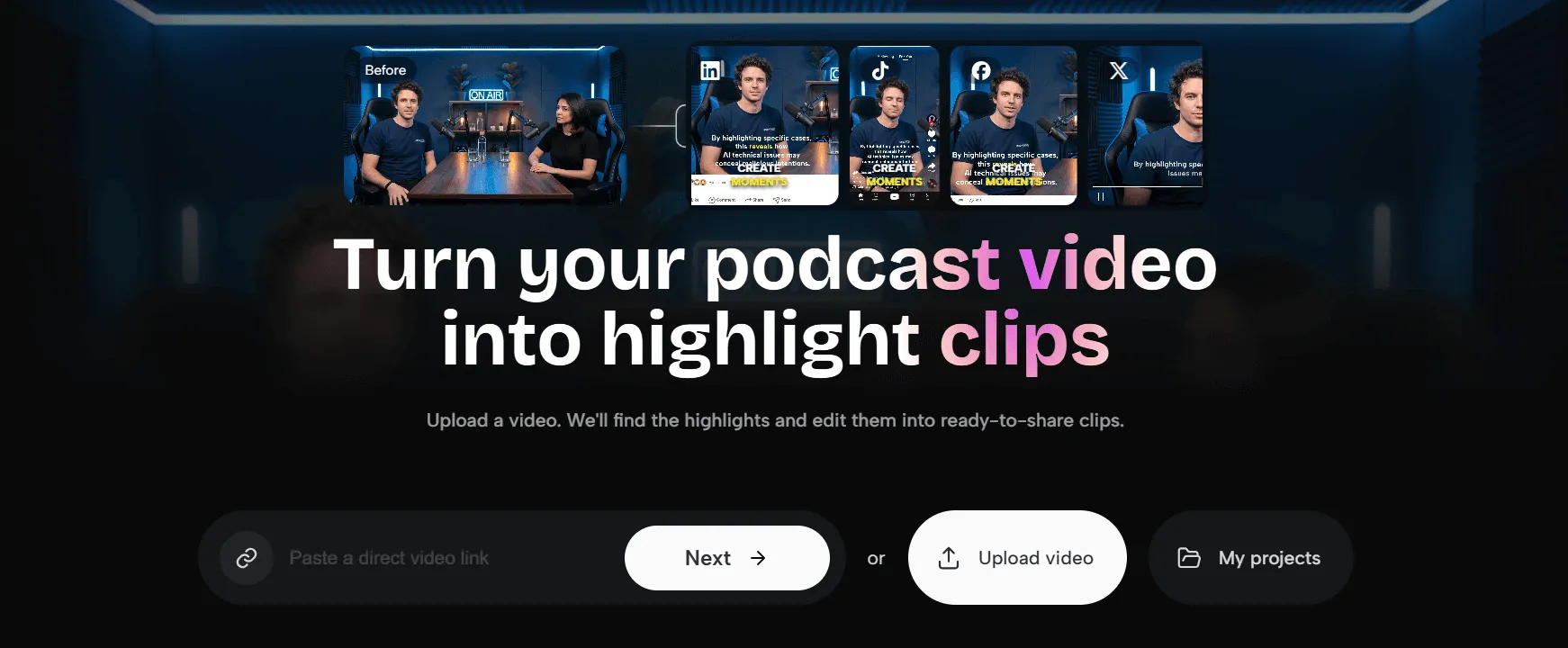
Step 1: Open AI Podcast Clip Generator & Import Podcast Source
Navigate to the AI Podcast Clip Generator page to enter the podcast clipping workflow. Prepare your finished full-length podcast recording. For our demo, the source file is a 45-minute remote-work interview. No re-recording is required.
Supported import methods:
-
Direct file upload: Upload local audio or video podcast files.
-
YouTube link import: Paste a YouTube podcast episode URL to fetch the source content.
After importing, confirm the episode loads correctly before moving to the next step.
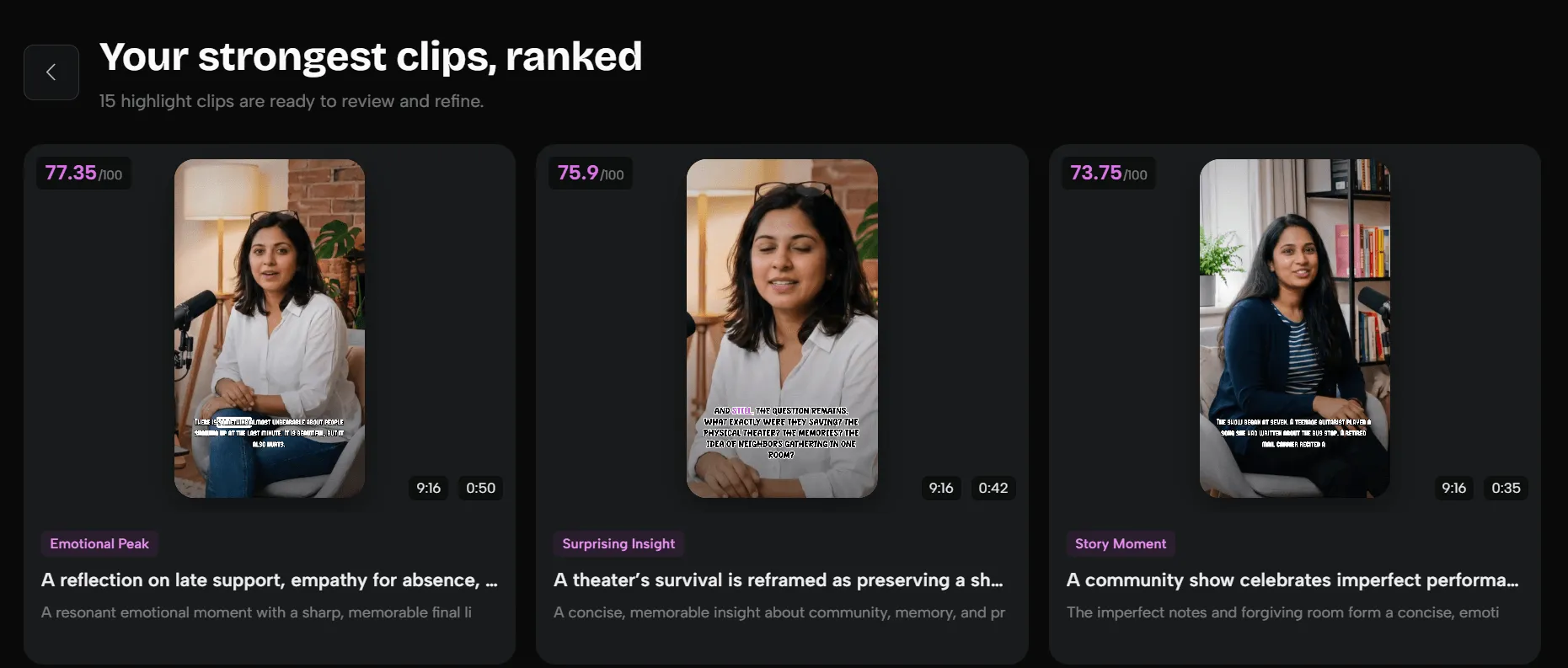
Step 2: Generate and Select AI-extracted Podcast Highlights
Once your podcast is processed, the AI automatically scans the full episode and outputs multiple candidate highlight clips with timestamps. The AI identifies segments with clear standalone insights, strong viewpoints and engaging conversations.
For our remote-work interview example, AI may surface candidate clips covering notification overload, meeting fatigue, and work-life boundary topics. Each candidate can become a separate YouTube Short.
Preview each auto-generated clip. Check whether the segment opens naturally, ends cleanly, and preserves the speaker’s original meaning. Pick clips that carry a complete, self-contained idea. Discard segments that require heavy background context for viewers to understand.
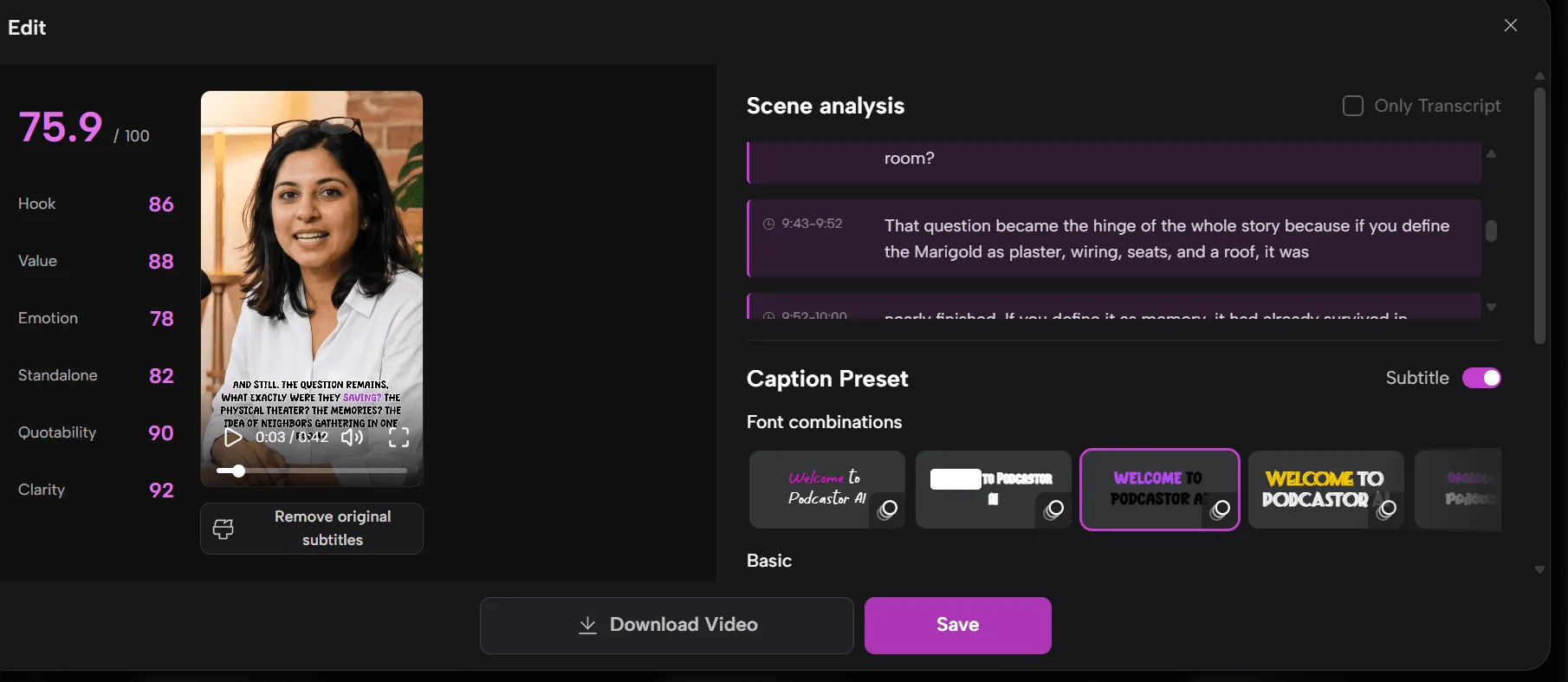
Step 3: Adjust Selected Clip — Trim Boundaries, Vertical Framing & Captions
After selecting your target highlight, open the clip editor for fine-tuning. You can adjust the start and end timestamp to cut redundant pauses or off-topic chat.
Configure the output canvas to 9:16 vertical ratio (1080×1920) for YouTube Shorts.
-
If your source is horizontal interview footage: Adjust framing to keep speakers inside the screen’s safe zone; use split-screen layout for two-host conversations.
-
If your source is audio-only podcast: The tool auto-generates animated waveform visuals. Add branded backgrounds and speaker labels directly inside the editor.
Review and edit auto-generated captions. Fix transcription errors, shorten long sentences for mobile reading, and adjust caption position to avoid overlapping with YouTube’s native UI elements.
Step 4: Preview and Export Your Clip
Preview the final clip to verify framing, caption readability, audio volume and overall pacing. Continue adjusting if anything needs polishing.
When ready, click download to export the final MP4 file. After downloading, verify the local file plays smoothly and satisfies YouTube Shorts format rules.
Head over to YouTube Studio to upload your exported video. Write a concise title and description. For our demo clip, the description briefly introduces the topic of notification overload and links back to the original full remote-work podcast interview.
If your full podcast episode is hosted on YouTube, use YouTube’s Related Video feature to link this Short to your original long episode. Refer to YouTube official guide for Related Videos.
How to Turn a Podcast into YouTube Shorts Manually
Traditional video editing is a good option if you want precise control over each clip. You will need your original podcast recording and editing software such as CapCut or Adobe Premiere Pro. We continue using the 45-minute remote work interview as our example.
Step1: Select standalone podcast segments
Review your full episode and pick self-contained segments. Look for practical advice, counterintuitive insights or complete short stories. Avoid sections that rely on heavy pre-context. Note the timestamps of your selected highlight.
Step2: Trim and refine clip content
Import source media into your editor, cut to your marked timestamp range, and remove filler pauses or redundant phrases while preserving the speaker’s original meaning. Add on-screen title cards to introduce the topic; these are overlay text only and not new spoken audio. Aim for one clear core idea per short clip.
Step3: Build vertical layout and add captions
Set project resolution to 9:16 vertical. For horizontal interview footage, reframe speakers into the safe viewing area. For audio-only podcasts, add audiogram waveform animation and static background assets. Generate auto-captions, proofread text and place captions away from screen edges.
Step4: Export and prepare for upload
Export vertical MP4 file. Per YouTube Shorts official specs, Shorts can be up to 3 minutes long, but shorter focused clips usually perform better. Upload your finished file via YouTube Studio.
Publish Your Podcast Shorts
In YouTube Studio, select Create → Upload videos and choose your exported clip. Then add the title and description and complete the publishing settings.
Title & Description Optimization
Write search-aligned titles that state the core takeaway instead of generic labels like “podcast clip”. Our example title: Why Notifications Make Deep Work Harder. Titles must accurately reflect clip content without clickbait claims.
In the description, briefly summarize the clip and add a relevant question to invite discussion.
Link Shorts back to full podcast
If the full podcast is on your YouTube channel, add it as the Short’s Related Video so viewers can open the complete episode. This feature requires advanced feature access. Follow YouTube’s setup guide.
Data analysis
After publishing, track key metrics in YouTube Analytics: retention rate, average view duration and percentage viewed. Compare performance between different highlight topics to learn what resonates best with your audience, then apply these insights for future podcast clips. Do not judge performance by view count alone.
Turning long podcast episodes into YouTube Shorts helps you unlock new audiences without starting recording from scratch. Manual editing delivers maximum customisation, while an AI YouTube Short Maker streamlines highlight extraction and vertical video creation.