
Introduction
You might spend hours recording and editing a YouTube video, only to realize just before uploading that you haven’t prepared a thumbnail. So, you quickly grab a frame from the video and hope it catches someone’s attention.
But on YouTube’s search results and recommendation pages, thumbnails are often among the first things viewers notice. A well-designed thumbnail can help viewers understand your content before they even press play. In this guide, we’ll cover the essentials of effective thumbnail design and show you how to create YouTube thumbnails with PodcastorAI, using your existing content and AI-powered image generation.
TL;DR: A compelling YouTube thumbnail can help improve click-through rate (CTR) by giving viewers a clear reason to choose your podcast episode. Combine the right dimensions, a clear visual subject, and readable text to highlight what makes the conversation worth watching.
Why Your YouTube Thumbnail Matters
Your thumbnail works alongside your video title to shape viewers’ first impressions, giving potential listeners a quick preview of what awaits and helping them decide whether to dive into your podcast episode. Unlike many fast-cut entertainment videos, podcast content often sells conversation, expertise, storytelling, or guest insights — so your cover has to communicate trust and curiosity in a split second.
According to YouTube’s official documentation, half of all channels and videos have an impressions click-through rate (CTR) between 2% and 10%. CTR varies depending on the audience, topic, and traffic source, yet it remains an essential benchmark for podcast creators, who often rely on consistent, recognizable visuals to build returning listeners.
An effective thumbnail can help you attract attention in search results, communicate your video’s topic, and establish a recognizable channel identity. For podcast creators in particular, keeping a consistent visual language — whether that means featuring your host, highlighting a notable guest, or reusing a fixed colour palette across every episode — helps audiences instantly recognise new releases within your series, even when they are quickly scanning dozens of results.
YouTube Thumbnail Design Essentials for Podcast Videos
Your podcast’s show cover identifies the series, while each YouTube episode thumbnail introduces a specific conversation. Keep the show recognizable, but highlight what makes this episode worth watching—a featured guest, a debate, or a question explored in the discussion.
Thumbnail Size and Format
For a full-length video podcast on YouTube, use a 16:9 thumbnail. YouTube’s official guidelines recommend 3840 × 2160 pixels, with a minimum width of 640 pixels. JPG and PNG are supported formats.
If your podcast already has a square cover for audio platforms, adapt its colours, fonts, and logo to a horizontal layout. Use the additional space for a host or guest image and a short episode headline, rather than using the same show cover for every upload.
Visual Composition and Text
Choose the main subject based on the conversation. An interview thumbnail can feature the guest, while a solo episode can highlight the host. For a topic-led discussion, combine a host image with a background that represents the subject—for example, classroom and AI elements for a conversation about technology in education.
Use a short headline to communicate the episode’s central question or takeaway. “AI vs Teachers?” tells new viewers more about the discussion than “Education Podcast — Episode 12.” Keep the show name and episode number secondary so they do not compete with the main topic.
Maintain familiar branding across episodes, but update the subject and headline for each conversation. Preview the thumbnail at mobile size to check that faces remain recognizable and the headline is easy to read.
With your episode’s topic and visual direction in mind, you can use PodcastorAI to turn these choices into a thumbnail.
How to Create a YouTube Thumbnail with PodcastorAI
PodcastorAI’s Podcast Cover Generator lets you turn an episode topic and reference images into a YouTube thumbnail. Here’s how to apply the design choices above, from preparing your episode details to generating the artwork.
For this tutorial, we’ll create a thumbnail for a fictional podcast episode titled Will AI Replace Teachers?, using a host reference image and classroom-inspired visuals.
Step 1: Enter Your Episode Topic
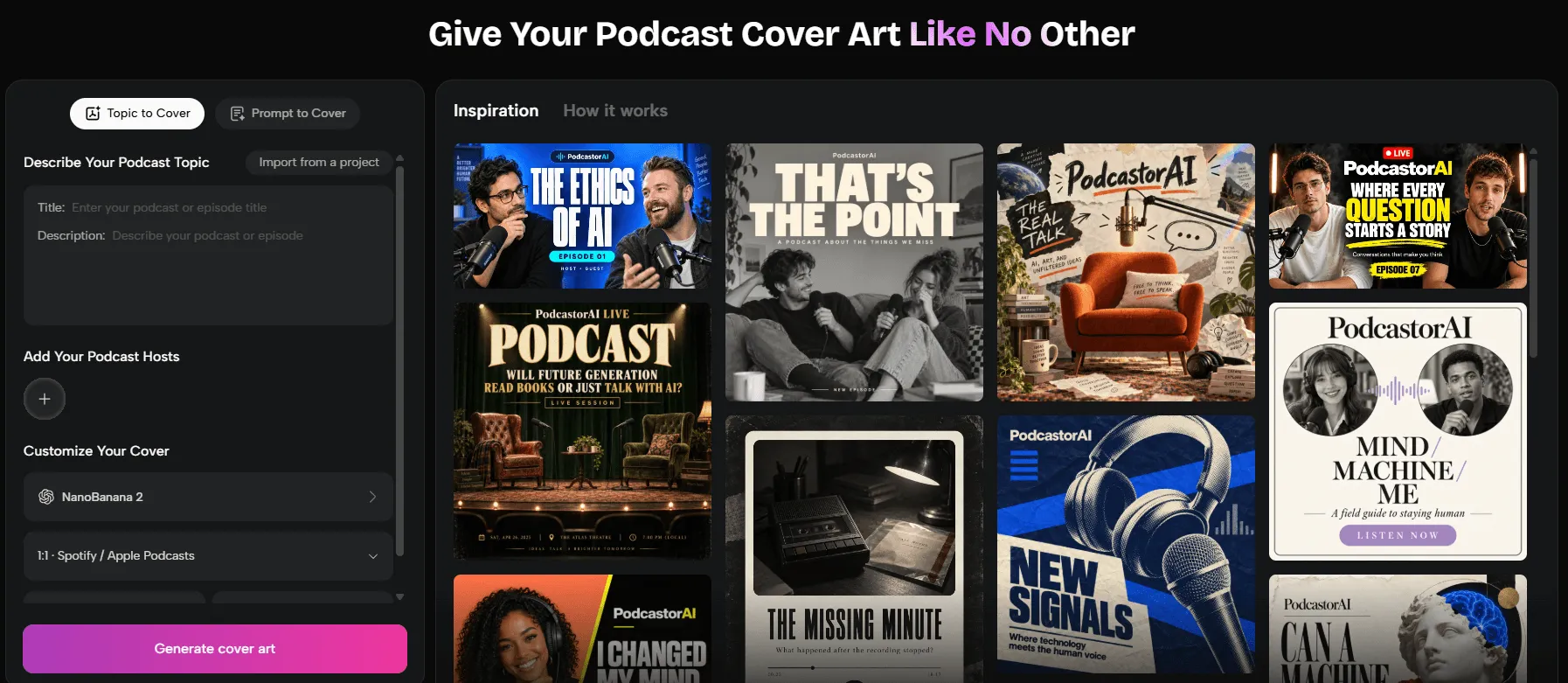
Open PodcastorAI Podcast Cover Generator.
You can begin with Topic to Cover or Prompt to Cover. If you already have an episode title and description, Topic to Cover provides a convenient starting point.
For our example, enter:
Title: Will AI Replace Teachers?
Description: A podcast discussion exploring how artificial intelligence is transforming classroom teaching and why human educators remain important.
If you’ve already created the episode in PodcastorAI, select Import from a project to reuse its content instead of entering the information again.
This is particularly useful for podcasters who regularly create YouTube versions of their episodes, since the thumbnail can be developed from the same project as the original content.
Step 2: Add Host Images and Reference Materials
Next, choose the visual materials you want to incorporate into the thumbnail.
If your podcast has a recurring host, you can provide their image as a reference to guide the generated character’s appearance. This can help maintain a recognizable visual identity across different episodes.
For our education podcast, we could use the regular host’s image alongside an existing dark blue cover as references. This would help communicate both the desired character appearance and the channel’s established visual style.
Step 3: Choose an AI Model and Image Resolution
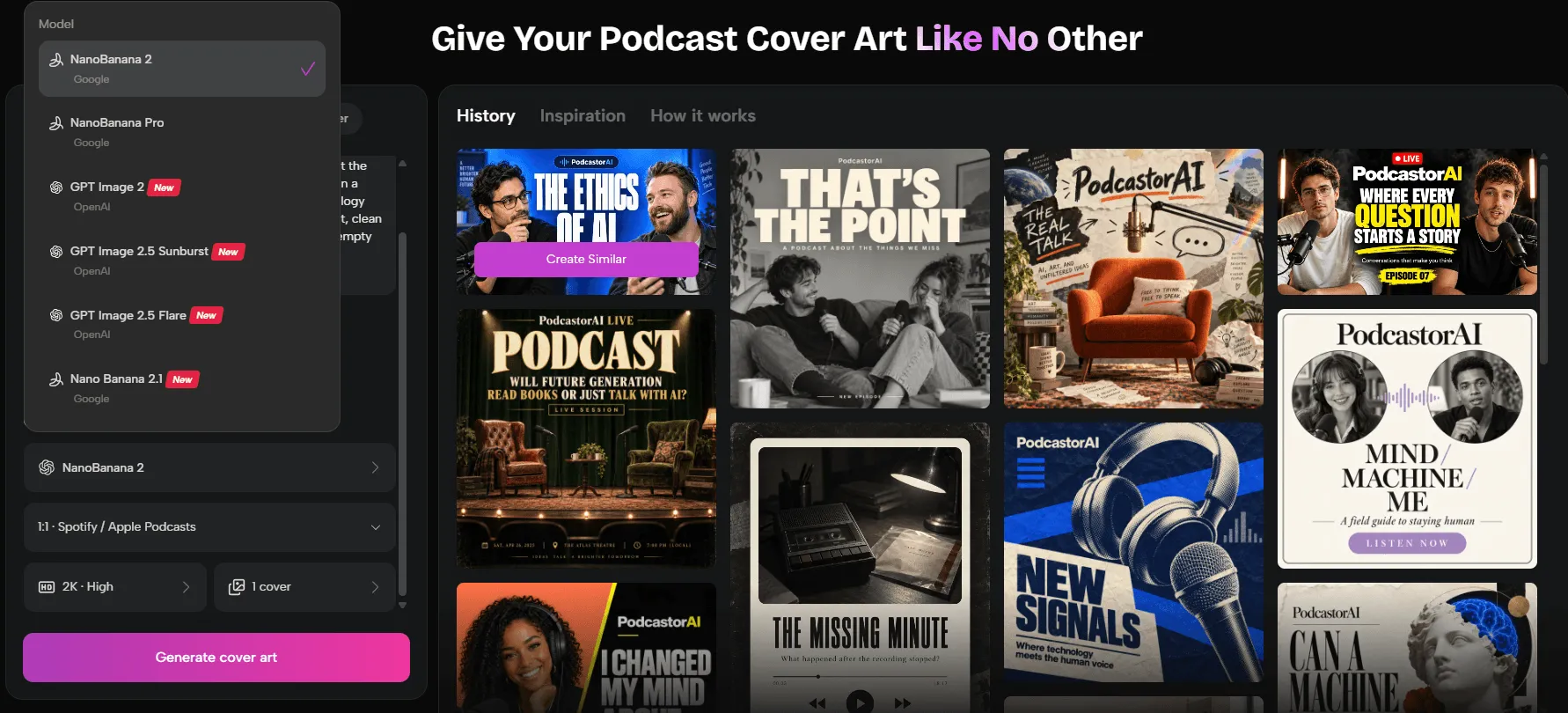
PodcastorAI supports multiple AI image models, allowing creators to select different generation options based on their design needs and available credits.
The available options include models from the NanoBanana and GPT Image families. Different models and generation settings may offer different image quality, resolution, and credit requirements.
For a standard YouTube thumbnail, choose the 16:9 aspect ratio. PodcastorAI also provides resolution options such as 1K, 2K, and 4K, although the available combinations depend on the selected model.
The following comparison outlines the settings to check before generating your thumbnail:
| AI Model | Resolution Options | Credits per Image |
|---|---|---|
| NanoBanana series | 1K/2K/4K | 3/4/10 |
| GPT Image series | 1K/2K/4K | 5/5/10 |
PodcastorAI provides 50 free credits for newly registered users. The number of images you can generate with those credits depends on your chosen model, resolution, and generation settings.
For example, if you’re experimenting with different thumbnail concepts, you can compare the available model options and their displayed credit costs before choosing your settings. This helps you decide how to use your free credits.
You can also select the number of images to generate, allowing you to explore multiple visual directions in one generation session.
Step 4: Customize and Generate Your Thumbnail
Once you’ve selected your model and output settings, describe the thumbnail you want to create.
For Will AI Replace Teachers?, we’ll use the podcast host as the main subject, positioned on the right against a classroom-inspired background with subtle AI elements and space for a headline on the left.
You could use the following prompt:
“Create a YouTube thumbnail for a podcast episode about AI in education. Use the person in the reference image as the podcast host and main subject, positioned on the right. Add a modern classroom background with subtle AI elements, a dark blue colour palette, and strong contrast. Leave clear space on the left for a headline. Keep the composition simple and use a 16:9 aspect ratio.”
Click Generate cover art to create your images.
Review the generated results and select the composition that best communicates your episode’s topic. If the background contains too many decorative elements or the subject isn’t positioned correctly, refine the prompt and generate another version.
For example, you could ask for fewer technology elements or a stronger right-aligned composition to create more space for the headline.
Step 5: Finalize and Upload Your Thumbnail
After selecting your preferred image, check its resolution, composition, and appearance at smaller sizes.
For our example, a short headline such as “AI vs Teachers?” would complement the full episode title. If the generated artwork needs additional text or precise layout adjustments, complete those finishing touches in a suitable image editor.
Save the final thumbnail in a YouTube-compatible format.
Then open YouTube Studio, navigate to Content, select your video, and upload the image in the Thumbnail section. Save your changes to apply the new thumbnail.
How to Test and Improve Your YouTube Thumbnail
After publishing, use YouTube Analytics to understand how viewers respond to your thumbnail and title.
Start by reviewing impressions click-through rate (CTR). Compare results across similar videos and traffic sources, since CTR can change depending on where and to whom your content is shown.
You can also use YouTube Studio’s A/B Testing feature to compare different designs. According to YouTube’s official documentation, eligible creators can test up to three title or thumbnail variations in one experiment. YouTube evaluates the results based on watch time rather than clicks alone.
For Will AI Replace Teachers?, you could compare a thumbnail featuring the podcast host with another emphasizing a futuristic classroom. PodcastorAI’s multiple-image generation options can help you prepare different visual concepts for these tests.
Create Your Next YouTube Thumbnail with PodcastorAI
Creating a YouTube thumbnail doesn’t have to involve searching for images and rebuilding designs for every new episode.
With PodcastorAI, you can start from an episode topic or existing project, reuse host images and visual materials, and generate cover artwork using different AI models and resolution settings.
New users receive 50 free credits, so you can explore the available image generation options and start creating thumbnails based on your content.