
If you run a video podcast, cutting short clips from every episode is part of the job. Clips on YouTube Shorts, Instagram Reels, and TikTok are how a lot of new listeners find a show now. Doing it by hand means scrubbing through an hour of footage to find 40 good seconds.
OpusClip and PodcastorAI both use AI to handle that. Each takes a long episode, finds the strongest moments, and turns them into captioned vertical clips. That shared feature is why the two get compared, and it’s the focus of this article. Beyond clipping, PodcastorAI also offers full-episode creation from notes, articles, or documents, so I cover that as an extra, not the main event.
I compared them on the four questions podcasters ask most:
- Can you use it for free? What you get before paying, and what it costs once you do.
- How good are the clips? Whether the AI picks the moments you’d pick, and how usable the captions are.
- Which has more clipping features? And whether more is actually better for your show.
- Which is easier for podcasters? How much setup and cleanup sits between upload and post.
Quick Answer
Both tools can turn a long podcast video into captioned short clips. The better pick depends on the rest of your workflow.
| Your situation | Closer fit |
|---|---|
| You’re just starting a podcast and want usable clips without learning a full editor | PodcastorAI |
| You have notes, articles, PDFs, or research, but no recording | PodcastorAI |
| You want to create an episode with AI voices or AI hosts | PodcastorAI |
| You schedule social posts or hand clips to an editor in Premiere Pro or DaVinci Resolve | OpusClip |
| You need advanced editing tools for recorded episodes, like B-roll, filler-word removal, and brand kits | OpusClip |
| You want to create full episodes from source material and also produce promotional clips | PodcastorAI as a starting point; add OpusClip if you need its dedicated editing or publishing tools |
Before you choose, compare them on four things:
- Free access: PodcastorAI offers 50 trial credits for up to 12 minutes of audio, podcast videos up to two minutes each, and two voice customizations, plus AI clipping, script generation, and transcript editing. OpusClip provides 60 free monthly credits at one credit per source-video minute, including auto-reframing and captions; editing and advanced tools require a paid plan.
- Clip quality: PodcastorAI picked the segment I’d have cut myself, though captions show as full-sentence blocks. OpusClip lets you guide picks with prompts, but multi-speaker clips need a closer check.
- Clipping features: OpusClip has more, including animated captions, B-roll, and Premiere Pro export. PodcastorAI covers the essentials.
- Ease of use: PodcastorAI has fewer settings and keeps clipping and episode creation in one place. OpusClip takes more setup.
What PodcastorAI Is Built For
PodcastorAI combines podcast clipping and AI podcast creation in one workflow. You can start from notes, an article, or other source material and create the episode first, or upload an existing video podcast and turn it into short clips for social media.
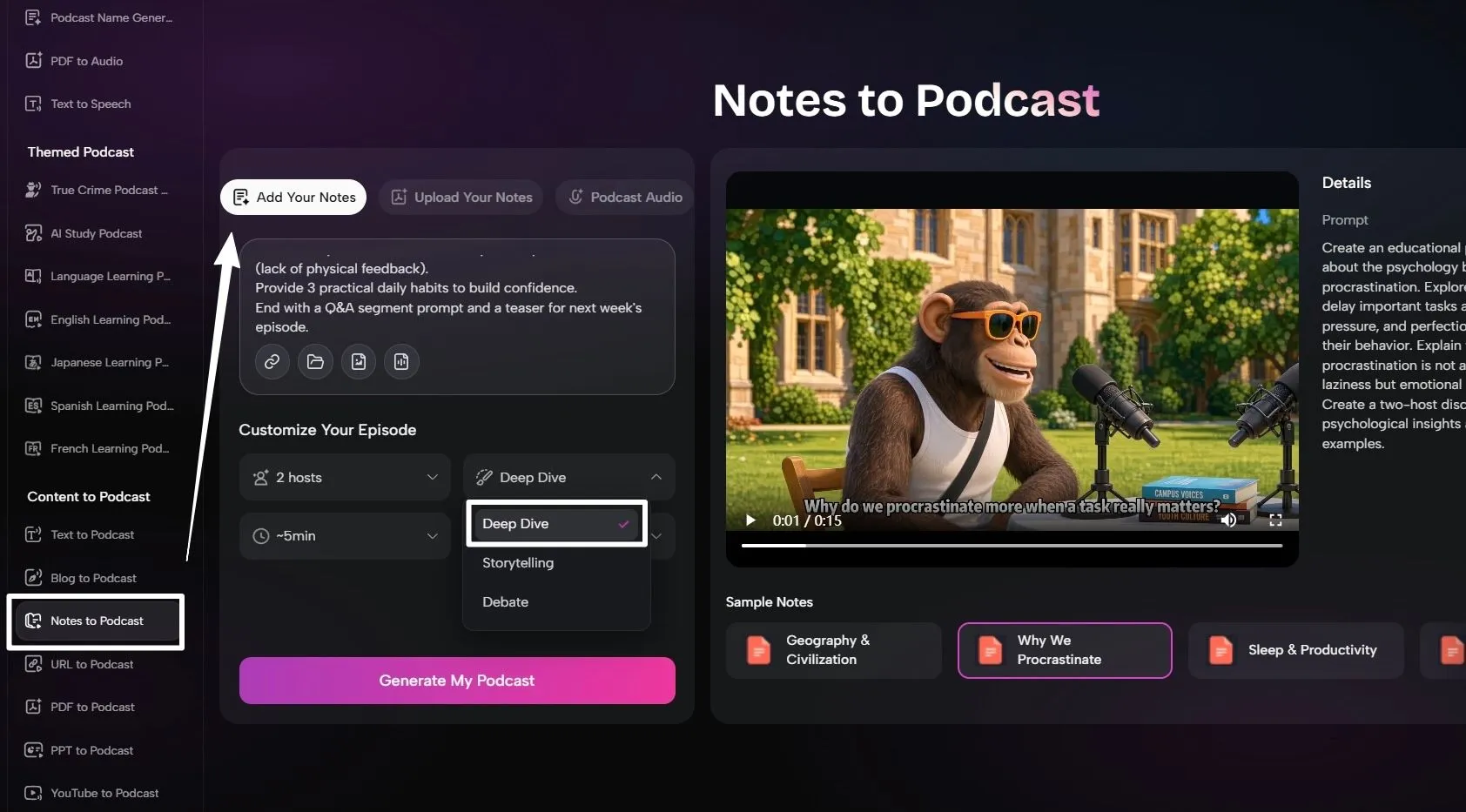
For this test, I started from scratch. In Notes to Podcast, I selected 2 hosts and Deep Dive, entered a prompt for a five-minute episode about imposter syndrome in remote work, reviewed the generated script, and chose a voice for each host in the AI Voice panel.
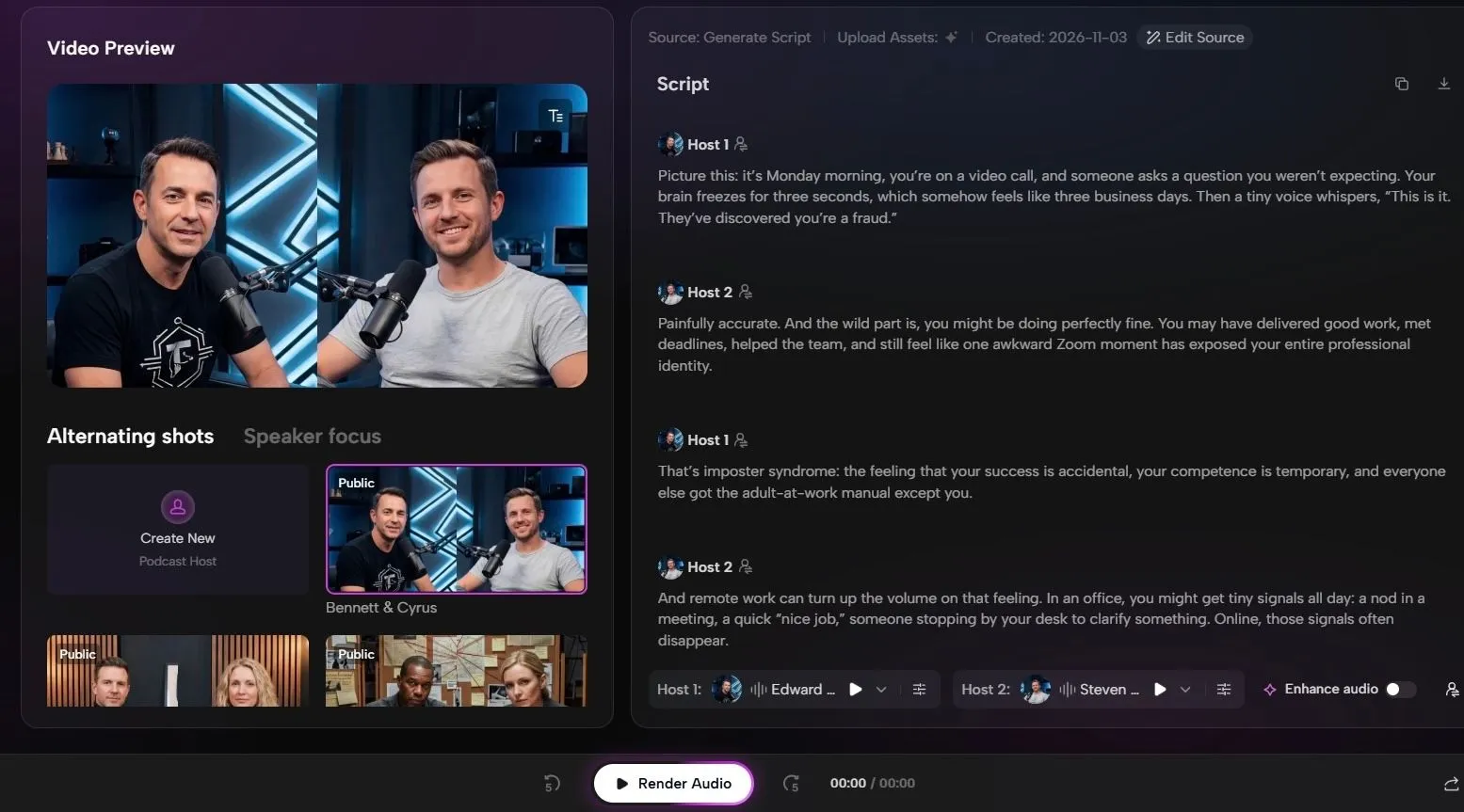
The generated script still needs fact-checking, and AI hosts can’t replace a real guest’s firsthand experience. But for turning notes into a first episode, it gets you there quickly.
Next, I took the finished video into PodcastorAI’s clipping tool, selected a 9:16 format, and received seven captioned highlights ranked by score. Each clip was labeled by type, such as Funny Moment or Actionable Tip, which made the list quick to review.
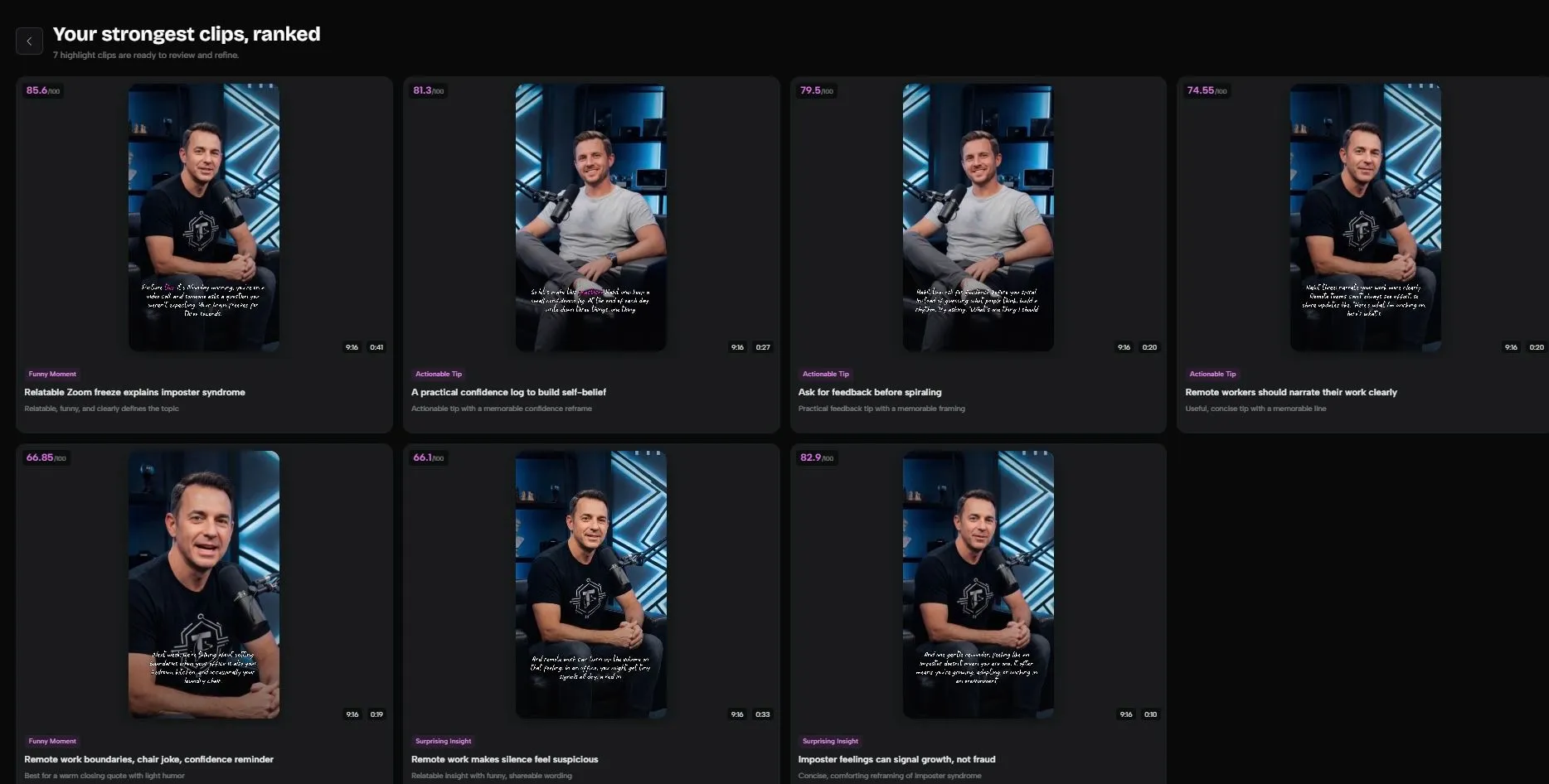
I chose the top clip, a 41-second highlight scored 85.6/100. It opened with a relatable workplace story and ended on a clear point, so it worked on its own without the rest of the episode. It was the part I would have picked myself. The score breakdown (Hook, Value, Emotion, Standalone, Quotability, and Clarity) also showed why it ranked first. From there, the panel on the right had what I needed to finish the clip: a timestamped transcript, caption presets, and basic font, size, alignment, and color settings. I picked a preset that matched the video’s style and downloaded the clip without moving to another editor.
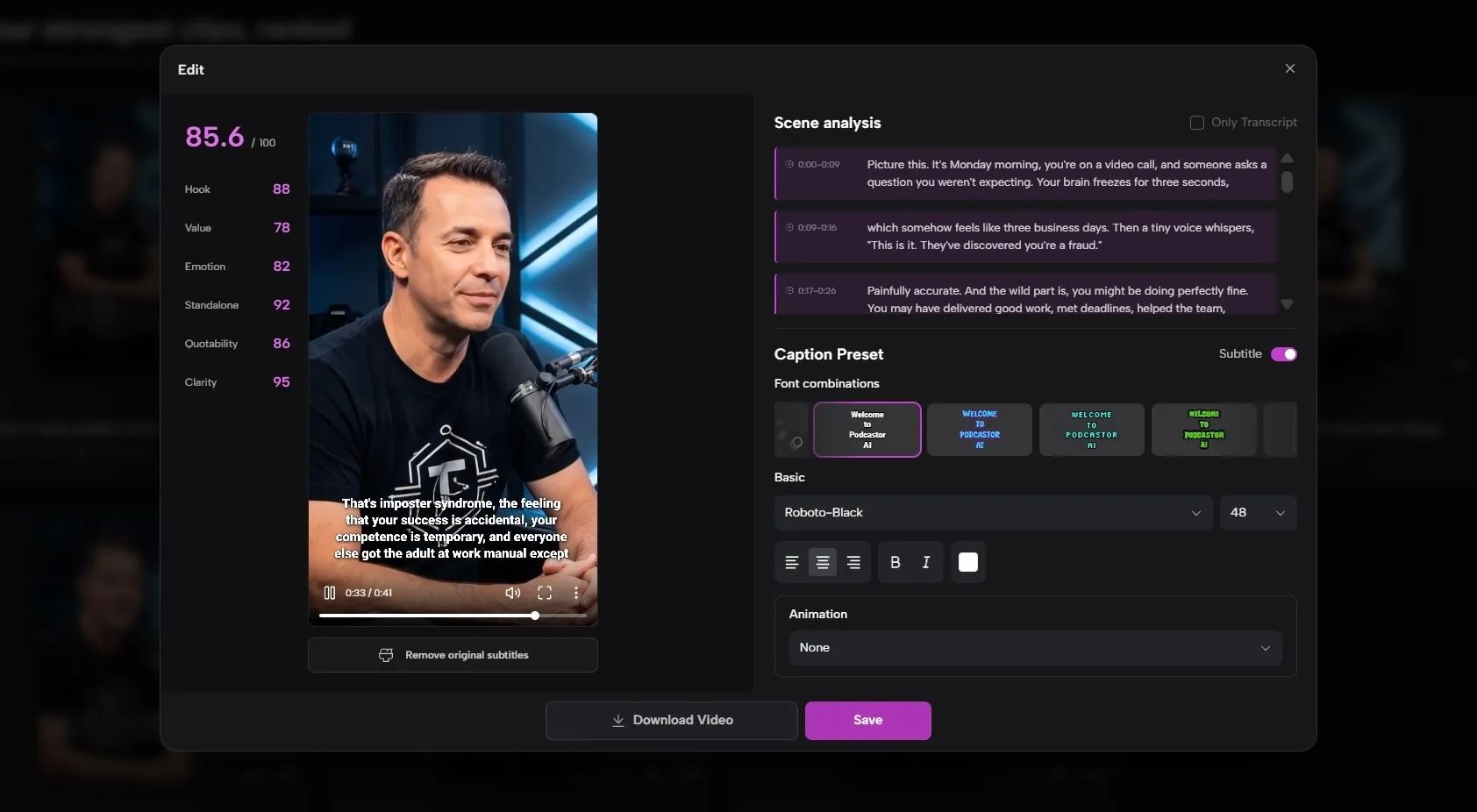
For me, highlight clipping was the best part of the experience. The top clip was exactly the segment I wanted, and I didn’t have to scrub through the episode to find it. The editing panel is just as easy to follow: the score, transcript, and caption settings sit on one screen, so it’s clear what to adjust without hunting through menus.
The one thing I’d point out is caption size. In this clip, the captions stretched across most of the frame’s width, three or four lines at a time. The good news is that you can edit the captions yourself, segment by segment, in the timestamped transcript, so tidying them up before export is easy.
Overall, PodcastorAI is a great fit for solo creators, small teams, and new shows. You can go from notes to a finished episode to ready-to-post clips in one workspace, with no recording setup or separate editor. The ranked list and score breakdown show you which clips are worth posting and why, and the editing options cover what most promo clips need without a long list of settings to learn. New accounts get 50 trial credits, so you can test clipping on your own episode before choosing a plan.
What OpusClip Is Built For
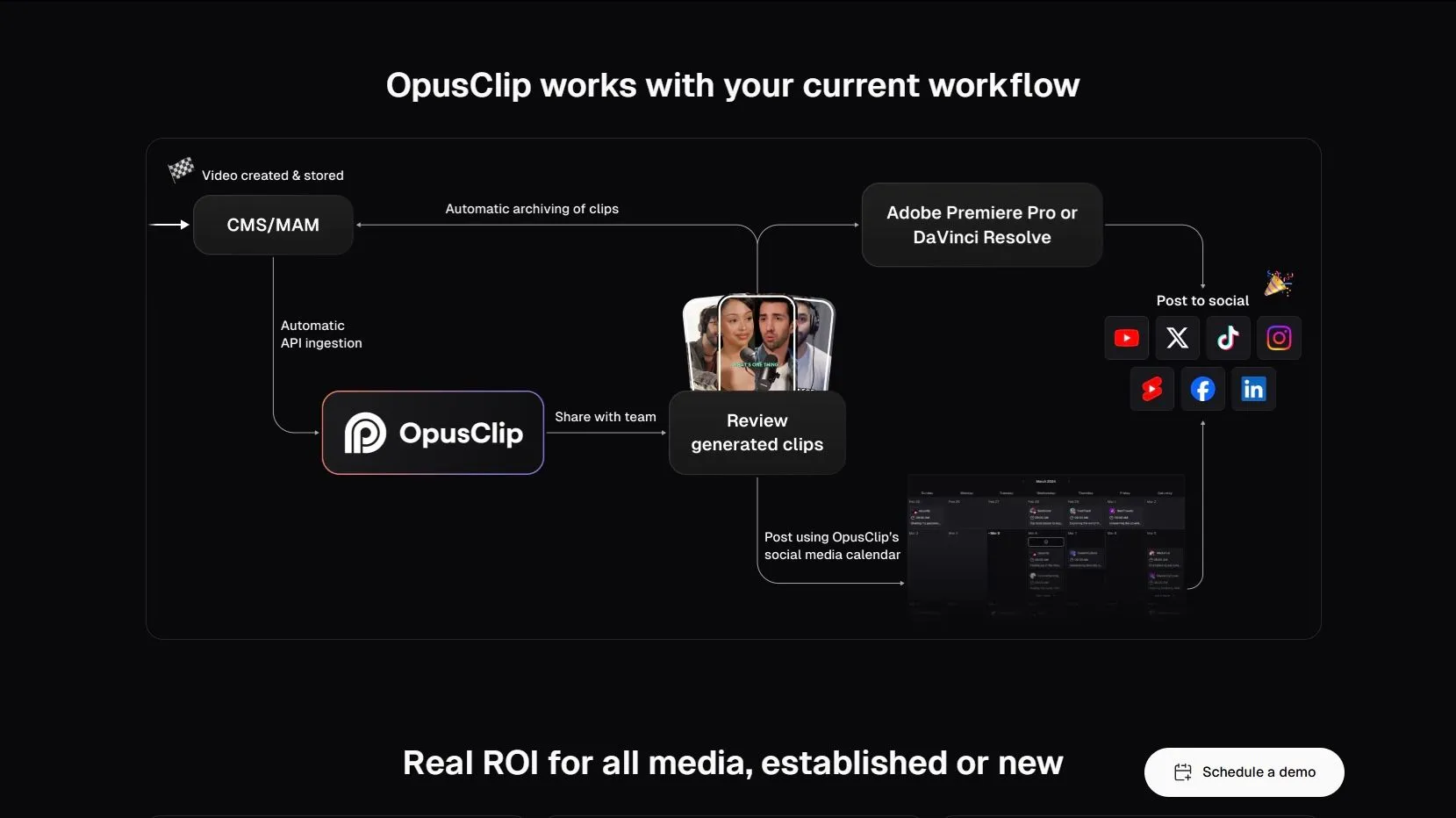
OpusClip is a dedicated AI clipping tool. Its Long to Short workflow takes a full-length video, finds highlights, and turns them into captioned clips for YouTube Shorts, Instagram Reels, or TikTok. Around that, it adds AI captions, B-roll, reframing, brand kits, and social scheduling, and on Pro you can export projects to Adobe Premiere Pro or DaVinci Resolve.
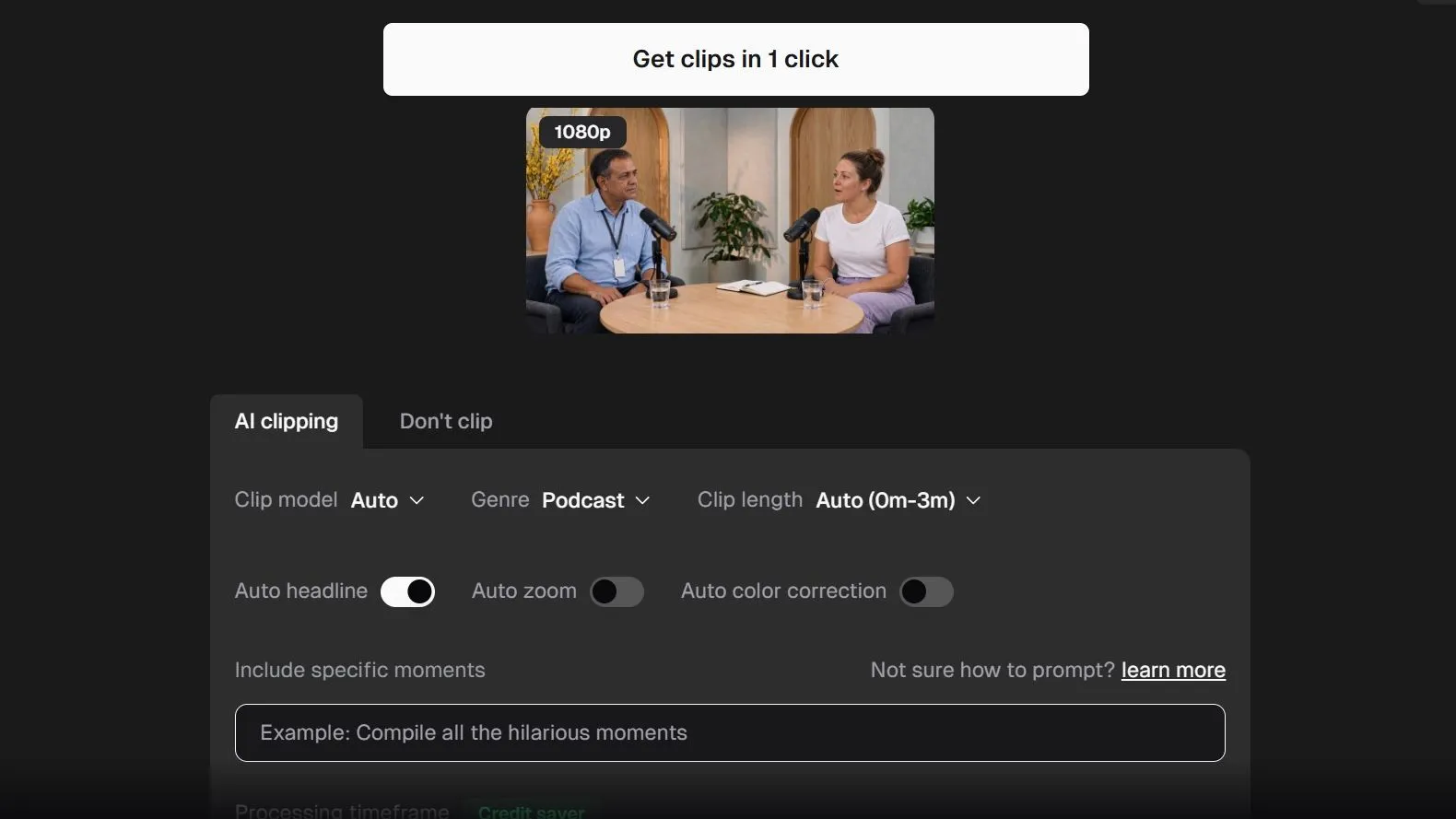
To see how it handles a podcast, I uploaded a 1-minute-22-second video and selected “Clip long video.” The settings are detailed: a Podcast genre, a clip model, clip length (Auto, 0-3 minutes), a prompt field for the moments you want, and a processing range labeled “Credit saver” so you can skip an intro or a sponsor read.
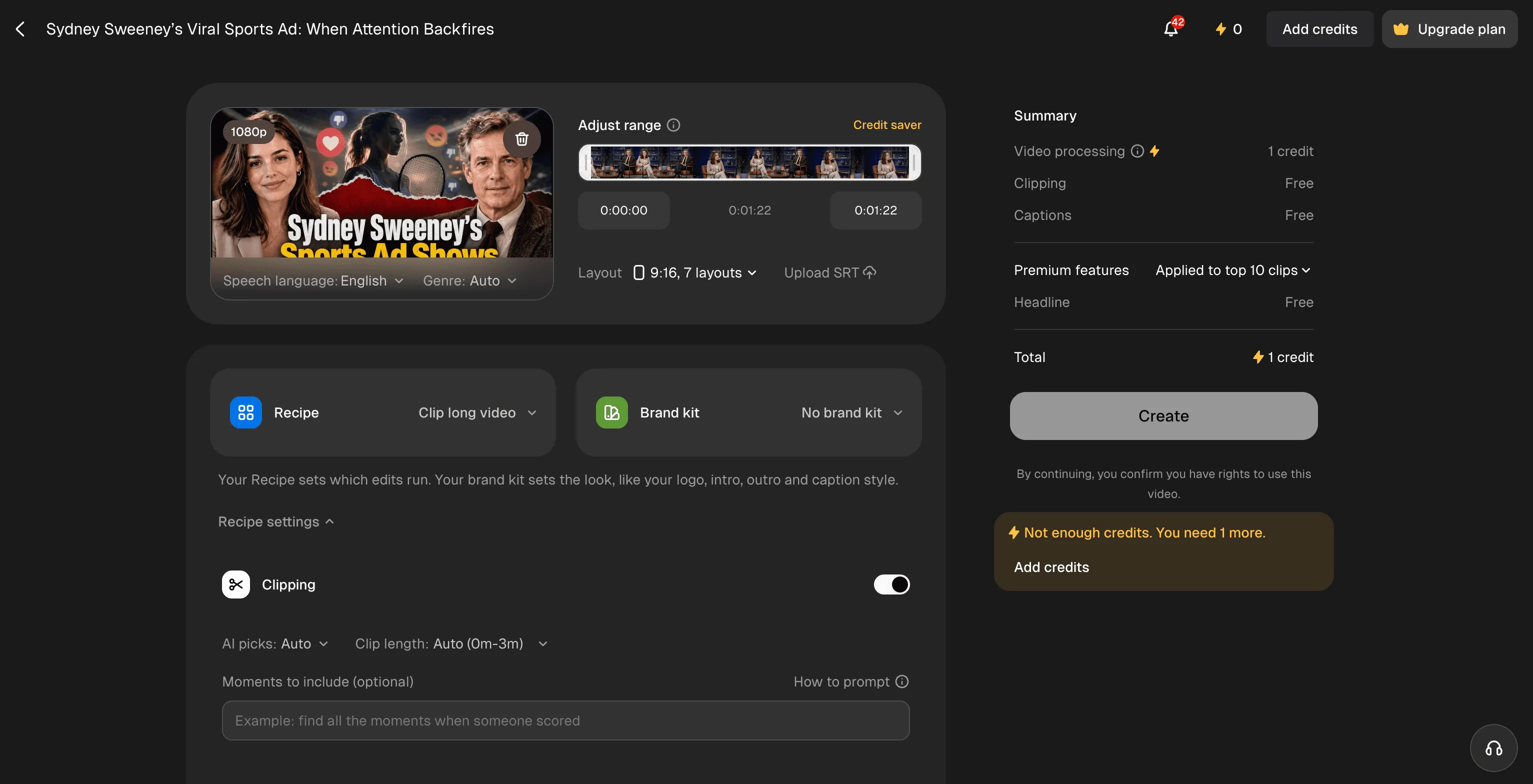
The summary panel showed 1 credit for video processing, with clipping and captions listed as free. When I clicked Create, though, OpusClip asked me to add credits first. Long to Short runs on credits, charged at 1 credit per minute of source video, so for regular use it’s effectively a paid feature. The free tier adds a watermark, turns off editing, and expires exports after three days.
As I started using it, I found a lot to like. You can prompt for specific moments and trim the processing range to save credits. There are plenty of caption styles, including word-by-word presets like Karaoke, and you can upload an SRT file for more accurate captions. The credit cost is shown before you start, and brand kits, scheduling, and Premiere Pro export make it a good fit for teams.
I also ran into a few drawbacks. Many options, such as auto B-roll, speech cleanup, audio enhancement, and auto zoom, are premium, and with so many switches it took me a while to decide what to turn on before seeing a single clip. Credits are based on source minutes, so a 60-minute episode uses 60 credits no matter how many clips you keep. Cleanup also happens clip by clip: OpusClip’s help docs say there’s no bulk caption editing, and some users report that framing on multi-person podcasts needs manual fixes.
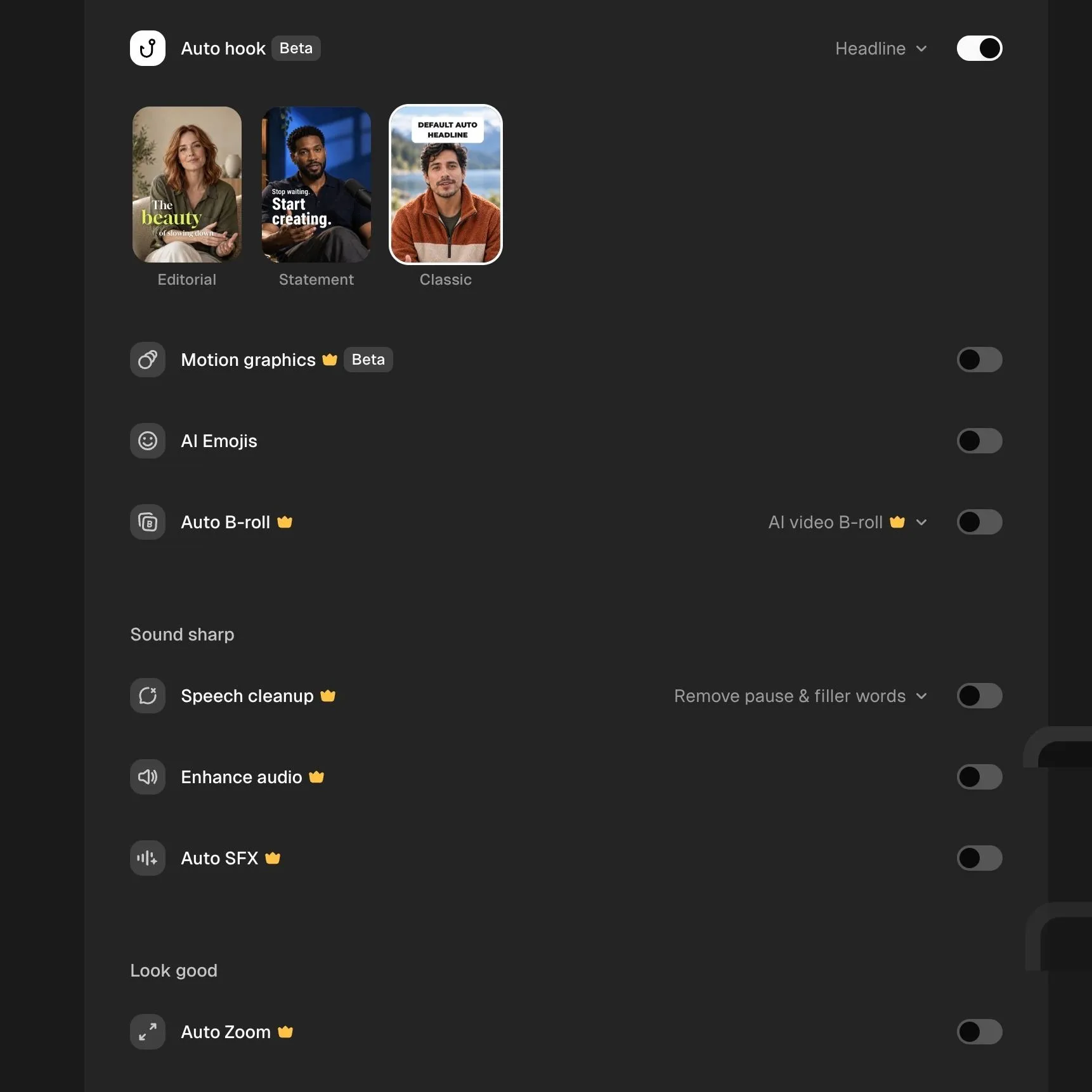
For an established show with a backlog of recordings and an editor on hand, that depth is a real advantage.
Side-by-Side Comparison
| Comparison | PodcastorAI | OpusClip |
|---|---|---|
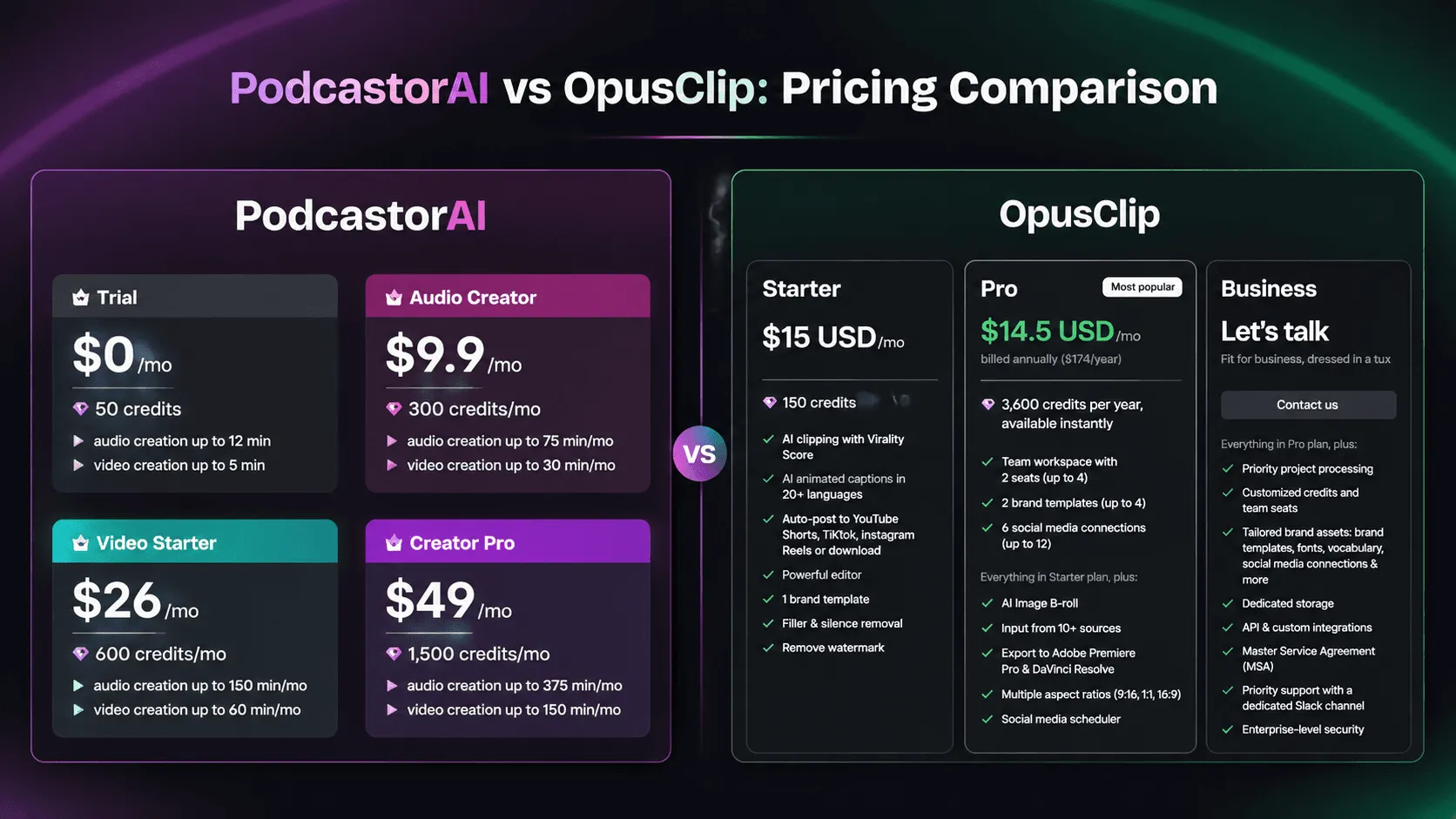
| Free access | 50 one-time trial credits at sign-up | Free plan with 60 credits/month, a watermark, no editor, and a 3-day export window |
| Paid plans (monthly) | Audio Creator USD 9.90 (300 credits) Video Starter USD 26 (600 credits) Creator Pro USD 49 (1,500 credits) |
Starter USD 15 (150 credits) Pro USD 29, or USD 14.50/month billed annually (USD 174/year) |
| Captions | Caption presets plus font, size, color, and alignment; captions can be edited in the timestamped transcript. In my test they ran as long blocks | Many animated presets (Karaoke, Marker Sweep, Word Cut) and SRT upload; no bulk caption editing |
| Clipping features | Core set: AI-ranked highlights, transcript, caption styling, direct download | Deeper toolkit: B-roll, reframing, AI voiceover, filler-word removal, audio enhancement, brand kits, scheduling, Premiere Pro/DaVinci Resolve export (several on paid plans) |
| Beyond clipping | Creates full episodes from notes, articles, or documents | Starts from an existing recording |
| Ease of use | Few settings; upload to download in a few clicks | More setup before the first clip; fixes happen clip by clip |
| Best for | Solo creators, small teams, and new shows | Established shows with an editor and a publishing workflow |
OpusClip offers more advanced clipping and publishing options. PodcastorAI combines highlight clipping and full-episode creation in one workspace. To compare costs, check each plan’s clipping allowance and billing terms, alongside how many usable clips you get from an episode.
Final Verdict: Which Should You Use?
There’s no single winner. It depends on where your show is right now.
- Choose PodcastorAI if you’re solo or just starting out, want clips without learning a big editor, or want to try an AI podcast clip tool before paying for one. It’s also worth considering if you’re working from notes or research instead of a recording.
- Choose OpusClip if you run an established show with a backlog of recordings, edit in Premiere Pro or DaVinci Resolve, or need scheduling, B-roll, and brand templates across a team.
- Use both if you create and clip in PodcastorAI but sometimes need OpusClip’s editing or scheduling tools. That’s only worth it if those tools save you more time than a second subscription costs.
Still not sure? Run the same 10-minute segment through each tool and count the clips you’d actually post. That number will tell you more than any feature list.
FAQ
Is OpusClip free?
OpusClip has a free plan with 60 credits a month, roughly 60 minutes of source video. Clips are watermarked, editing is turned off, and exports expire after three days. Paid plans start at $15/month.
Is PodcastorAI free?
PodcastorAI gives new accounts 50 one-time trial credits, so you can test clipping before you pay. It’s a trial, not a free-forever plan. Paid plans start at $9.90/month.
Which is better for podcast clips, OpusClip or PodcastorAI?
For solo and newer podcasters who want usable clips with little setup, PodcastorAI is the simpler choice. For established shows that need detailed editing, B-roll, scheduling, and a Premiere Pro or DaVinci Resolve handoff, OpusClip offers more.
Can PodcastorAI clip a podcast I recorded somewhere else?
Yes. You can upload an existing podcast video to the clip generator, not just episodes you made in PodcastorAI.
Does OpusClip work for podcasts with multiple speakers?
Yes. It has a Podcast genre setting and follows the active speaker when reframing. Some users note that framing on multi-speaker conversations needs a closer check before posting.